Laura is an executive search consultant in Munich. At 9:15 a client in Zurich calls: they want to see every Head of Finance she already knows in Zurich who expects more than 180,000. Laura has more than 2,000 people in her database, and she does not want to build five filter rows by hand while the client waits on the line.
1
Laura opens Candidates and clicks Filters
The Advanced filters panel opens. At the top is a box that says “Describe the filter, e.g. “CFOs in Zürich added in the last year"".
2
She writes what the client said
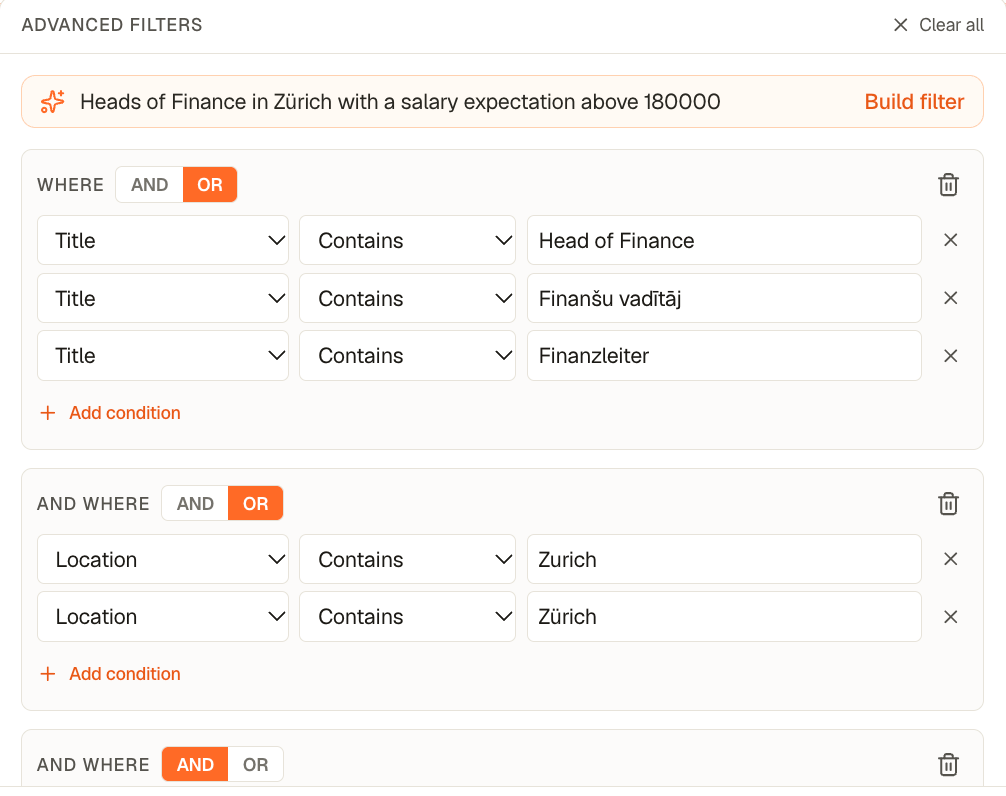
“Heads of Finance in Zürich with a salary expectation above 180000”. She presses Enter, or clicks Build filter.
3
The conditions appear, and the list narrows
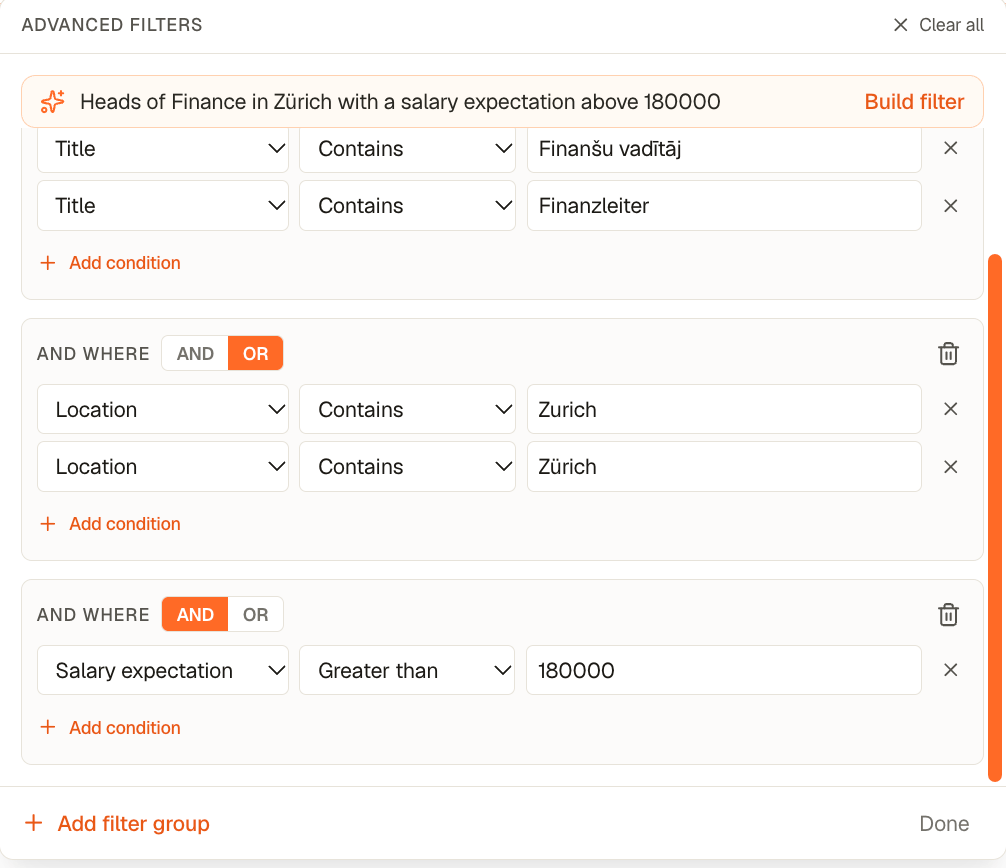
Yena replaces the current filters with the groups it built. Laura reads them: a Title group with the title in English and in other languages, a Location group with Zurich and Zürich, and Salary expectation greater than 180000. Everything stays editable. She can change a value, remove a row or add a condition.
The conditions the AI built from one sentence. Title and place each sit in their own group of alternatives.
Pay is part of the same filter. Here: Salary expectation greater than 180000.
4
She saves the filter as a view
The client asks for this list every month. Laura clicks Save view and has it one click away from then on. See Views, filters, and lists.
What Laura gets: an answer for the client in the same call, and a filter she did not have to assemble. She never had to learn which field is called what.
Places go to Location, never to the postal City or Country fields. Yena adds the spelling people write in their own language, so “Germany” also finds “Deutschland”, and “Riga” also finds “Rīga”. Both spellings sit in one group of alternatives, so the place still combines with your other conditions.
Job titles go to Title as a group of alternatives: English, the language of your description and the language of the place, matched as word stems. “Engineer” also finds “Ingenieur” and “inženier”. Names of people and companies stay as you wrote them.
When part of your sentence has no filter behind it, Yena builds what it can and writes a short note under the box. Today tags, pipeline stage, seniority and skills cannot be filtered. If nothing fits at all, you see “No filter fits that description. Try other words.” and the note says why. If the filter cannot be built at the moment, the box says so and you can build the filter by hand.
Every active custom field of your workspace is a filter under its own label, by hand and in the AI filter. That includes everything an import from your old system brought along, such as marital status, notice period, rating or a “per Du” flag.
Field type
How it filters
Number
As a number: equals, greater, less.
Yes / No
As yes or no.
Date
As a date.
Dropdown
By its options.
Text and the rest
As text.
A multi-select field is filtered as text.
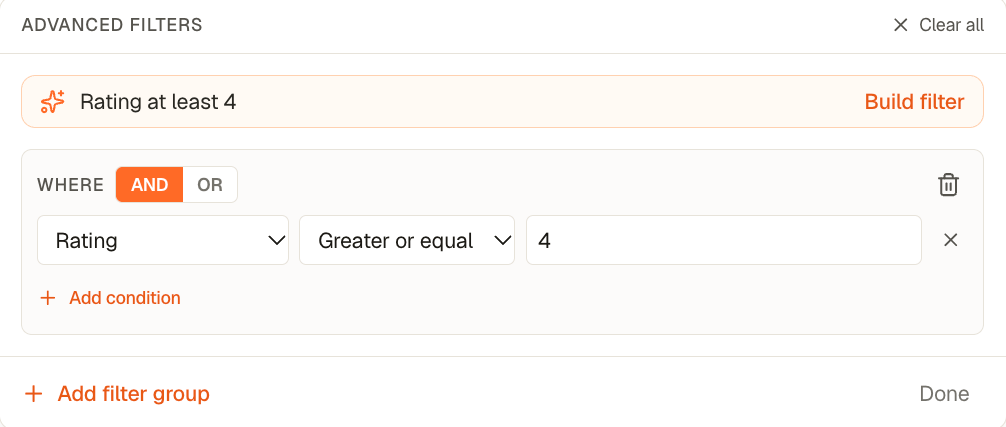
A custom field named Rating, built from the sentence 'Rating at least 4'
Define the field first under Tenant Admin → Custom Fields. See Custom fields.
No. It only sets filter conditions on the list. Clear all removes them.
Why did a part of my sentence disappear?
That part had no filter behind it, or its value did not fit the field. Yena shows a note under the box when it leaves something out.
Does a pay filter compare CHF and EUR?
It compares plain numbers and does not convert currencies. See Salary package.
⌘I
{"docsConfig":{"theme":"maple","$schema":"https://mintlify.com/docs.json","name":"Yena Help Center","description":"How to source, shortlist, and place with Yena.","colors":{"primary":"#FF4C00","light":"#FF6A2B","dark":"#E04300"},"logo":{"light":"https://mintcdn.com/yena/syYzOb4jHO7iuYSP/images/logo.png?fit=max\u0026auto=format\u0026n=syYzOb4jHO7iuYSP\u0026q=85\u0026s=80958bb66a092de311e3caaadc0354a4","dark":"https://mintcdn.com/yena/syYzOb4jHO7iuYSP/images/yena-icon-white.svg?fit=max\u0026auto=format\u0026n=syYzOb4jHO7iuYSP\u0026q=85\u0026s=8bc4814e47db83c354db7c7f0af1e420"},"favicon":"https://mintcdn.com/yena/syYzOb4jHO7iuYSP/favicon.ico?fit=max\u0026auto=format\u0026n=syYzOb4jHO7iuYSP\u0026q=85\u0026s=24b306bf9b37bcbdb150fc1d47d97d22","appearance":{"default":"light"},"navbar":{"links":[{"href":"mailto:support@yena.ai","label":"Contact"}],"primary":{"type":"button","label":"Open Yena","href":"https://my.yena.ai"}},"footer":{"socials":{"website":"https://www.yena.ai","linkedin":"https://www.linkedin.com/company/yena-ai"}},"seo":{"indexing":"navigable"},"integrations":{"posthog":{"apiKey":"phc_thrMVo9rYrhvYUXRnBZDxtSWz66aTSmnKR9BKzEUizt2"}},"styling":{"latex":false},"navigation":{"languages":[{"language":"de","href":"de"},{"language":"en","href":"en"}]}},"deployment":{"deploymentMetadataValue":{"subdomain":"yena","hasAudioNarration":false,"actualSubdomain":"yena","customDomains":["support.yena.ai"],"gitSource":{"type":"github","owner":"janiswotra","repo":"yena-docs","deployBranch":"main","contentDirectory":"","isPrivate":true,"mountPath":"","label":""},"chroma":{"collectionId":"f5cf1967-d737-415c-be6b-1eea89491538","liveDeploymentHistoryId":"6aec5eb88c2847cc731f1eb8","schemaVersion":"v3","latestBuiltDeploymentHistoryId":"6aec5eb88c2847cc731f1eb8"},"entitlements":{"AI_CHAT":{"status":"DISABLED"}},"buildId":"6aec5eb88c2847cc731f1eb8","clientVersion":"0.0.4074","searchFilterCounts":[{"language":"de","tag":"Pipeline \u0026 CRM","count":13},{"language":"de","tag":"Arbeitsbereich","count":13},{"language":"en","tag":"Pipeline \u0026 CRM","count":13},{"language":"en","tag":"Workspace","count":13},{"language":"de","tag":"Der Sourcer","count":12},{"language":"en","tag":"The Sourcer","count":12},{"language":"de","tag":"Kampagnen","count":10},{"language":"de","tag":"Erste Schritte","count":10},{"language":"en","tag":"Campaigns","count":10},{"language":"en","tag":"Getting Started","count":10},{"language":"de","tag":"Karriereseite","count":9},{"language":"de","tag":"Leitfäden","count":9},{"language":"en","tag":"Career Page","count":9},{"language":"en","tag":"Guides","count":9},{"language":"de","tag":"Kundenportal","count":7},{"language":"en","tag":"Client Portal","count":7},{"language":"de","tag":"Datenschutz \u0026 DSGVO","count":3},{"language":"en","tag":"Privacy \u0026 GDPR","count":3},{"language":"de","tag":"Integrationen","count":2},{"language":"en","tag":"Integrations","count":2}]},"assistantConfig":{"enableAskAiButton":false,"enableStarterQuestions":false,"enableContextualStarterQuestions":false,"enableAskAiSearchBar":true},"basePath":"","hasChatPermissions":false,"hasWebMcpPermissions":false,"toggles":[{"name":"kill-isr","enabled":true,"variant":{"name":"disabled","enabled":false,"feature_enabled":true},"impressionData":false},{"name":"agent-mintlify-slack","enabled":true,"variant":{"name":"disabled","enabled":false,"feature_enabled":true},"impressionData":false},{"name":"agent-integrations-settings","enabled":true,"variant":{"name":"disabled","enabled":false,"feature_enabled":true},"impressionData":false},{"name":"rbac-expansion","enabled":true,"variant":{"name":"disabled","enabled":false,"feature_enabled":true},"impressionData":false},{"name":"automations-pr-grouping","enabled":true,"variant":{"name":"disabled","enabled":false,"feature_enabled":true},"impressionData":false},{"name":"custom-prefix","enabled":true,"variant":{"name":"disabled","enabled":false,"feature_enabled":true},"impressionData":false},{"name":"analytics-v7","enabled":true,"variant":{"name":"disabled","enabled":false,"feature_enabled":true},"impressionData":false},{"name":"user-flows-analytics","enabled":true,"variant":{"name":"disabled","enabled":false,"feature_enabled":true},"impressionData":false},{"name":"no-publish-flow","enabled":true,"variant":{"name":"disabled","enabled":false,"feature_enabled":true},"impressionData":false},{"name":"workos-onboarding","enabled":true,"variant":{"name":"disabled","enabled":false,"feature_enabled":true},"impressionData":false},{"name":"llms-txt-v2","enabled":true,"variant":{"name":"disabled","enabled":false,"feature_enabled":true},"impressionData":false},{"name":"snapshot-serving-live","enabled":true,"variant":{"name":"disabled","enabled":false,"feature_enabled":true},"impressionData":false},{"name":"stripTemperatureMiddleware","enabled":true,"variant":{"name":"disabled","enabled":false,"feature_enabled":true},"impressionData":false},{"name":"support-platform-pylon-zendesk","enabled":true,"variant":{"name":"disabled","enabled":false,"feature_enabled":true},"impressionData":false},{"name":"snapshot-serving","enabled":true,"variant":{"name":"disabled","enabled":false,"feature_enabled":true},"impressionData":false},{"name":"instant-rollback","enabled":true,"variant":{"name":"disabled","enabled":false,"feature_enabled":true},"impressionData":false},{"name":"granular-notifications-server","enabled":true,"variant":{"name":"disabled","enabled":false,"feature_enabled":true},"impressionData":false},{"name":"granular-notifications","enabled":true,"variant":{"name":"disabled","enabled":false,"feature_enabled":true},"impressionData":false},{"name":"automations-fable","enabled":true,"variant":{"name":"disabled","enabled":false,"feature_enabled":true},"impressionData":false},{"name":"fixed-ai-action-pricing","enabled":true,"variant":{"name":"disabled","enabled":false,"feature_enabled":true},"impressionData":false},{"name":"automation-resolve-merge-conflict","enabled":true,"variant":{"name":"disabled","enabled":false,"feature_enabled":true},"impressionData":false},{"name":"scoped-publishing","enabled":true,"variant":{"name":"disabled","enabled":false,"feature_enabled":true},"impressionData":false},{"name":"mintql","enabled":true,"variant":{"name":"disabled","enabled":false,"feature_enabled":true},"impressionData":false},{"name":"page-level-analytics","enabled":true,"variant":{"name":"disabled","enabled":false,"feature_enabled":true},"impressionData":false},{"name":"editor-version-history-v2","enabled":true,"variant":{"name":"disabled","enabled":false,"feature_enabled":true},"impressionData":false},{"name":"billing-page-v2","enabled":true,"variant":{"name":"disabled","enabled":false,"feature_enabled":true},"impressionData":false},{"name":"full-page-search","enabled":true,"variant":{"name":"disabled","enabled":false,"feature_enabled":true},"impressionData":false},{"name":"workspace-projects","enabled":true,"variant":{"name":"disabled","enabled":false,"feature_enabled":true},"impressionData":false},{"name":"assistant-v5","enabled":true,"variant":{"name":"disabled","enabled":false,"feature_enabled":true},"impressionData":false},{"name":"fork-pr-previews","enabled":true,"variant":{"name":"disabled","enabled":false,"feature_enabled":true},"impressionData":false},{"name":"revalidation-jwt","enabled":true,"variant":{"name":"disabled","enabled":false,"feature_enabled":true},"impressionData":false},{"name":"vite-origin","enabled":true,"variant":{"name":"disabled","enabled":false,"feature_enabled":true},"impressionData":false},{"name":"workos-sso-scim","enabled":true,"variant":{"name":"disabled","enabled":false,"feature_enabled":true},"impressionData":false},{"name":"hobby-abuse-scan","enabled":true,"variant":{"name":"disabled","enabled":false,"feature_enabled":true},"impressionData":false},{"name":"dashboard-inbox","enabled":true,"variant":{"name":"disabled","enabled":false,"feature_enabled":true},"impressionData":false},{"name":"workos-signup","enabled":true,"variant":{"name":"disabled","enabled":false,"feature_enabled":true},"impressionData":false},{"name":"turbopuffer-dual-write","enabled":true,"variant":{"name":"disabled","enabled":false,"feature_enabled":true},"impressionData":false},{"name":"workos-enabled","enabled":true,"variant":{"name":"disabled","enabled":false,"feature_enabled":true},"impressionData":false},{"name":"approve-review-flow","enabled":true,"variant":{"name":"disabled","enabled":false,"feature_enabled":true},"impressionData":false},{"name":"sso-setup-deadline-banner","enabled":true,"variant":{"name":"disabled","enabled":false,"feature_enabled":true},"impressionData":false},{"name":"turbopuffer-serve","enabled":true,"variant":{"name":"disabled","enabled":false,"feature_enabled":true},"impressionData":false},{"name":"live-agents","enabled":true,"variant":{"name":"disabled","enabled":false,"feature_enabled":true},"impressionData":false},{"name":"comment-mode","enabled":true,"variant":{"name":"disabled","enabled":false,"feature_enabled":true},"impressionData":false}],"googleFontsInlined":false},"customCss":[],"page":{"pagePath":"en/workspace/ai-filter","slug":"/en/workspace/ai-filter","pageMetadata":{"title":"Filter Candidates with the AI filter","sidebarTitle":"AI filter","description":"Describe the people you want in your own words and Yena builds the filter conditions for you. Custom fields work too.","href":"/en/workspace/ai-filter"},"description":{"compiledSource":"\"use strict\";\nconst {jsx: _jsx} = arguments[0];\nconst {useMDXComponents: _provideComponents} = arguments[0];\nfunction _createMdxContent(props) {\n const _components = {\n p: \"p\",\n ..._provideComponents(),\n ...props.components\n };\n return _jsx(_components.p, {\n children: \"Describe the people you want in your own words and Yena builds the filter conditions for you. Custom fields work too.\"\n });\n}\nfunction MDXContent(props = {}) {\n const {wrapper: MDXLayout} = {\n ..._provideComponents(),\n ...props.components\n };\n return MDXLayout ? _jsx(MDXLayout, {\n ...props,\n children: _jsx(_createMdxContent, {\n ...props\n })\n }) : _createMdxContent(props);\n}\nreturn {\n default: MDXContent\n};\n","frontmatter":{},"scope":{}},"pageType":"default","mdx":{"mdxSource":{"compiledSource":"\"use strict\";const{Fragment:_Fragment,jsx:_jsx,jsxs:_jsxs}=arguments[0];const{useMDXComponents:_provideComponents}=arguments[0];function _createMdxContent(props){const _components={a:`a`,li:`li`,p:`p`,strong:`strong`,tbody:`tbody`,td:`td`,th:`th`,thead:`thead`,tr:`tr`,ul:`ul`,..._provideComponents(),...props.components},{Accordion,AccordionGroup,Frame,Heading,OptimizedImage,Step,Steps,Table}=_components;if(!Accordion)_missingMdxReference(`Accordion`,true);if(!AccordionGroup)_missingMdxReference(`AccordionGroup`,true);if(!Frame)_missingMdxReference(`Frame`,true);if(!Heading)_missingMdxReference(`Heading`,true);if(!OptimizedImage)_missingMdxReference(`OptimizedImage`,true);if(!Step)_missingMdxReference(`Step`,true);if(!Steps)_missingMdxReference(`Steps`,true);if(!Table)_missingMdxReference(`Table`,true);return _jsxs(_Fragment,{children:[_jsx(_components.p,{children:`The AI filter turns a sentence into the same filter conditions you would build by hand. You can read them, change them and save them as a view.`}),`\n`,_jsx(Heading,{level:`2`,id:`a-day-with-the-ai-filter`,children:`A day with the AI filter`}),`\n`,_jsx(_components.p,{children:`Laura is an executive search consultant in Munich. At 9:15 a client in Zurich calls: they want to see every Head of Finance she already knows in Zurich who expects more than 180,000. Laura has more than 2,000 people in her database, and she does not want to build five filter rows by hand while the client waits on the line.`}),`\n`,_jsxs(Steps,{children:[_jsx(Step,{title:`Laura opens Candidates and clicks Filters`,children:_jsxs(_components.p,{children:[`The `,_jsx(_components.strong,{children:`Advanced filters`}),` panel opens. At the top is a box that says “Describe the filter, e.g. “CFOs in Zürich added in the last year\"\".`]})}),_jsx(Step,{title:`She writes what the client said`,children:_jsxs(_components.p,{children:[`“Heads of Finance in Zürich with a salary expectation above 180000”. She presses Enter, or clicks `,_jsx(_components.strong,{children:`Build filter`}),`.`]})}),_jsxs(Step,{title:`The conditions appear, and the list narrows`,children:[_jsxs(_components.p,{children:[`Yena replaces the current filters with the groups it built. Laura reads them: a `,_jsx(_components.strong,{children:`Title`}),` group with the title in English and in other languages, a `,_jsx(_components.strong,{children:`Location`}),` group with Zurich and Zürich, and `,_jsx(_components.strong,{children:`Salary expectation`}),` greater than 180000. Everything stays editable. She can change a value, remove a row or add a condition.`]}),_jsx(Frame,{caption:`The conditions the AI built from one sentence. Title and place each sit in their own group of alternatives.`,children:_jsx(OptimizedImage,{src:`https://mintcdn.com/yena/mLnz-xNZLjZi6ih1/images/screenshots/workspace/ai-filter-built.png?fit=max\u0026auto=format\u0026n=mLnz-xNZLjZi6ih1\u0026q=85\u0026s=13778204261212cbca3751c06b5f1bc7`,alt:`Advanced filters with the description box and a Title group and a Location group`,\"data-og-width\":`1006`,width:`1006`,\"data-og-height\":`796`,height:`796`,\"data-path\":`images/screenshots/workspace/ai-filter-built.png`,\"data-optimize\":`true`,\"data-opv\":`3`,srcset:`https://mintcdn.com/yena/mLnz-xNZLjZi6ih1/images/screenshots/workspace/ai-filter-built.png?w=280\u0026fit=max\u0026auto=format\u0026n=mLnz-xNZLjZi6ih1\u0026q=85\u0026s=7948dc6a697642752c5c1349ad075333 280w, https://mintcdn.com/yena/mLnz-xNZLjZi6ih1/images/screenshots/workspace/ai-filter-built.png?w=560\u0026fit=max\u0026auto=format\u0026n=mLnz-xNZLjZi6ih1\u0026q=85\u0026s=fbdc3522996ed793e30d0617ed3a5109 560w, https://mintcdn.com/yena/mLnz-xNZLjZi6ih1/images/screenshots/workspace/ai-filter-built.png?w=840\u0026fit=max\u0026auto=format\u0026n=mLnz-xNZLjZi6ih1\u0026q=85\u0026s=c3d8e36627bb61fa1f846cdfa94b019a 840w, https://mintcdn.com/yena/mLnz-xNZLjZi6ih1/images/screenshots/workspace/ai-filter-built.png?w=1100\u0026fit=max\u0026auto=format\u0026n=mLnz-xNZLjZi6ih1\u0026q=85\u0026s=b01a8183dba7fed205284b95cf269379 1100w, https://mintcdn.com/yena/mLnz-xNZLjZi6ih1/images/screenshots/workspace/ai-filter-built.png?w=1650\u0026fit=max\u0026auto=format\u0026n=mLnz-xNZLjZi6ih1\u0026q=85\u0026s=1fdee14baf45396299d9e69144b70c1d 1650w, https://mintcdn.com/yena/mLnz-xNZLjZi6ih1/images/screenshots/workspace/ai-filter-built.png?w=2500\u0026fit=max\u0026auto=format\u0026n=mLnz-xNZLjZi6ih1\u0026q=85\u0026s=1a16ba3bfd3929168fa9eb88fbf7413e 2500w`})}),_jsx(Frame,{caption:`Pay is part of the same filter. Here: Salary expectation greater than 180000.`,children:_jsx(OptimizedImage,{src:`https://mintcdn.com/yena/mLnz-xNZLjZi6ih1/images/screenshots/workspace/ai-filter-pay.png?fit=max\u0026auto=format\u0026n=mLnz-xNZLjZi6ih1\u0026q=85\u0026s=7c877c542c7287cd213b89be5f44bf0d`,alt:`Advanced filters with a Salary expectation greater than 180000 condition`,\"data-og-width\":`1006`,width:`1006`,\"data-og-height\":`868`,height:`868`,\"data-path\":`images/screenshots/workspace/ai-filter-pay.png`,\"data-optimize\":`true`,\"data-opv\":`3`,srcset:`https://mintcdn.com/yena/mLnz-xNZLjZi6ih1/images/screenshots/workspace/ai-filter-pay.png?w=280\u0026fit=max\u0026auto=format\u0026n=mLnz-xNZLjZi6ih1\u0026q=85\u0026s=a8aa7b8d1c795c88e123f4baa2b018c1 280w, https://mintcdn.com/yena/mLnz-xNZLjZi6ih1/images/screenshots/workspace/ai-filter-pay.png?w=560\u0026fit=max\u0026auto=format\u0026n=mLnz-xNZLjZi6ih1\u0026q=85\u0026s=6cf8cb04dc1e9fcc57f47c7e2e6f4626 560w, https://mintcdn.com/yena/mLnz-xNZLjZi6ih1/images/screenshots/workspace/ai-filter-pay.png?w=840\u0026fit=max\u0026auto=format\u0026n=mLnz-xNZLjZi6ih1\u0026q=85\u0026s=15f45e6920b6366a374be11802ca24e5 840w, https://mintcdn.com/yena/mLnz-xNZLjZi6ih1/images/screenshots/workspace/ai-filter-pay.png?w=1100\u0026fit=max\u0026auto=format\u0026n=mLnz-xNZLjZi6ih1\u0026q=85\u0026s=be993145eb8b182339540093a661c06b 1100w, https://mintcdn.com/yena/mLnz-xNZLjZi6ih1/images/screenshots/workspace/ai-filter-pay.png?w=1650\u0026fit=max\u0026auto=format\u0026n=mLnz-xNZLjZi6ih1\u0026q=85\u0026s=acc03911a0bdcfe325f08d0ad946fc4d 1650w, https://mintcdn.com/yena/mLnz-xNZLjZi6ih1/images/screenshots/workspace/ai-filter-pay.png?w=2500\u0026fit=max\u0026auto=format\u0026n=mLnz-xNZLjZi6ih1\u0026q=85\u0026s=f6d7236b62925baea75a4767783447b1 2500w`})})]}),_jsx(Step,{title:`She saves the filter as a view`,children:_jsxs(_components.p,{children:[`The client asks for this list every month. Laura clicks `,_jsx(_components.strong,{children:`Save view`}),` and has it one click away from then on. See `,_jsx(_components.a,{href:`/en/workspace/views-filters-lists`,children:`Views, filters, and lists`}),`.`]})})]}),`\n`,_jsx(_components.p,{children:`What Laura gets: an answer for the client in the same call, and a filter she did not have to assemble. She never had to learn which field is called what.`}),`\n`,_jsx(Heading,{level:`2`,id:`what-the-ai-can-filter`,children:`What the AI can filter`}),`\n`,_jsx(_components.p,{children:`The AI builds conditions only from filters the Candidates list offers:`}),`\n`,_jsxs(_components.ul,{children:[`\n`,_jsx(_components.li,{children:_jsx(_components.strong,{children:`Name, Email, Phone, Title, Company, Location, Owner, Source, LinkedIn, City, Country, Nationality`})}),`\n`,_jsxs(_components.li,{children:[_jsx(_components.strong,{children:`Current salary`}),` and `,_jsx(_components.strong,{children:`Salary expectation`}),`, as yearly numbers. “200k” becomes 200000. See `,_jsx(_components.a,{href:`/en/pipeline/salary-package`,children:`Salary package`}),`.`]}),`\n`,_jsxs(_components.li,{children:[_jsx(_components.strong,{children:`Created`}),`, `,_jsx(_components.strong,{children:`Updated`}),` and `,_jsx(_components.strong,{children:`Profile Updated`}),`, as dates or “in the last year”.`]}),`\n`,_jsxs(_components.li,{children:[_jsx(_components.strong,{children:`Every custom field of your workspace`}),`, see below.`]}),`\n`]}),`\n`,_jsx(_components.p,{children:`Yena checks what comes back. A condition the list cannot run is dropped, never guessed. A filter has at most three groups of eight conditions.`}),`\n`,_jsx(Heading,{level:`3`,id:`places-and-job-titles`,children:`Places and job titles`}),`\n`,_jsxs(_components.ul,{children:[`\n`,_jsxs(_components.li,{children:[_jsx(_components.strong,{children:`Places`}),` go to `,_jsx(_components.strong,{children:`Location`}),`, never to the postal City or Country fields. Yena adds the spelling people write in their own language, so “Germany” also finds “Deutschland”, and “Riga” also finds “Rīga”. Both spellings sit in one group of alternatives, so the place still combines with your other conditions.`]}),`\n`,_jsxs(_components.li,{children:[_jsx(_components.strong,{children:`Job titles`}),` go to `,_jsx(_components.strong,{children:`Title`}),` as a group of alternatives: English, the language of your description and the language of the place, matched as word stems. “Engineer” also finds “Ingenieur” and “inženier”. Names of people and companies stay as you wrote them.`]}),`\n`]}),`\n`,_jsx(Heading,{level:`3`,id:`what-it-says-it-cannot-do`,children:`What it says it cannot do`}),`\n`,_jsx(_components.p,{children:`When part of your sentence has no filter behind it, Yena builds what it can and writes a short note under the box. Today tags, pipeline stage, seniority and skills cannot be filtered. If nothing fits at all, you see “No filter fits that description. Try other words.” and the note says why. If the filter cannot be built at the moment, the box says so and you can build the filter by hand.`}),`\n`,_jsx(Heading,{level:`2`,id:`filter-by-any-custom-field`,children:`Filter by any custom field`}),`\n`,_jsx(_components.p,{children:`Every active custom field of your workspace is a filter under its own label, by hand and in the AI filter. That includes everything an import from your old system brought along, such as marital status, notice period, rating or a “per Du” flag.`}),`\n`,_jsxs(Table,{children:[_jsx(_components.thead,{children:_jsxs(_components.tr,{children:[_jsx(_components.th,{children:`Field type`}),_jsx(_components.th,{children:`How it filters`})]})}),_jsxs(_components.tbody,{children:[_jsxs(_components.tr,{children:[_jsx(_components.td,{children:`Number`}),_jsx(_components.td,{children:`As a number: equals, greater, less.`})]}),_jsxs(_components.tr,{children:[_jsx(_components.td,{children:`Yes / No`}),_jsx(_components.td,{children:`As yes or no.`})]}),_jsxs(_components.tr,{children:[_jsx(_components.td,{children:`Date`}),_jsx(_components.td,{children:`As a date.`})]}),_jsxs(_components.tr,{children:[_jsx(_components.td,{children:`Dropdown`}),_jsx(_components.td,{children:`By its options.`})]}),_jsxs(_components.tr,{children:[_jsx(_components.td,{children:`Text and the rest`}),_jsx(_components.td,{children:`As text.`})]})]})]}),`\n`,_jsx(_components.p,{children:`A multi-select field is filtered as text.`}),`\n`,_jsx(Frame,{caption:`A custom field named Rating, built from the sentence 'Rating at least 4'`,children:_jsx(OptimizedImage,{src:`https://mintcdn.com/yena/mLnz-xNZLjZi6ih1/images/screenshots/workspace/ai-filter-custom-field.png?fit=max\u0026auto=format\u0026n=mLnz-xNZLjZi6ih1\u0026q=85\u0026s=0d8067df7509c318affa1ba68e950a39`,alt:`Advanced filters with a Rating greater or equal 4 condition`,\"data-og-width\":`1006`,width:`1006`,\"data-og-height\":`427`,height:`427`,\"data-path\":`images/screenshots/workspace/ai-filter-custom-field.png`,\"data-optimize\":`true`,\"data-opv\":`3`,srcset:`https://mintcdn.com/yena/mLnz-xNZLjZi6ih1/images/screenshots/workspace/ai-filter-custom-field.png?w=280\u0026fit=max\u0026auto=format\u0026n=mLnz-xNZLjZi6ih1\u0026q=85\u0026s=a13e938fd620eed0c07643386793524f 280w, https://mintcdn.com/yena/mLnz-xNZLjZi6ih1/images/screenshots/workspace/ai-filter-custom-field.png?w=560\u0026fit=max\u0026auto=format\u0026n=mLnz-xNZLjZi6ih1\u0026q=85\u0026s=5eca20ed9ec2cf1b7f1de345d819eb38 560w, https://mintcdn.com/yena/mLnz-xNZLjZi6ih1/images/screenshots/workspace/ai-filter-custom-field.png?w=840\u0026fit=max\u0026auto=format\u0026n=mLnz-xNZLjZi6ih1\u0026q=85\u0026s=efa0ba9d29ce8d6fcd4e5e1c43e57911 840w, https://mintcdn.com/yena/mLnz-xNZLjZi6ih1/images/screenshots/workspace/ai-filter-custom-field.png?w=1100\u0026fit=max\u0026auto=format\u0026n=mLnz-xNZLjZi6ih1\u0026q=85\u0026s=e1e5f9be4eaac2fe4664d0dd20ebb8ec 1100w, https://mintcdn.com/yena/mLnz-xNZLjZi6ih1/images/screenshots/workspace/ai-filter-custom-field.png?w=1650\u0026fit=max\u0026auto=format\u0026n=mLnz-xNZLjZi6ih1\u0026q=85\u0026s=41318fee69f72630a33bf2c99d6c2cd7 1650w, https://mintcdn.com/yena/mLnz-xNZLjZi6ih1/images/screenshots/workspace/ai-filter-custom-field.png?w=2500\u0026fit=max\u0026auto=format\u0026n=mLnz-xNZLjZi6ih1\u0026q=85\u0026s=8aed69fcaa41bb3d3c7f44183dda8c51 2500w`})}),`\n`,_jsxs(_components.p,{children:[`Define the field first under `,_jsx(_components.strong,{children:`Tenant Admin → Custom Fields`}),`. See `,_jsx(_components.a,{href:`/en/workspace/custom-fields`,children:`Custom fields`}),`.`]}),`\n`,_jsx(Heading,{level:`2`,id:`by-hand-if-you-prefer`,children:`By hand, if you prefer`}),`\n`,_jsxs(_components.p,{children:[`Click `,_jsx(_components.strong,{children:`Add filter group`}),` or `,_jsx(_components.strong,{children:`Add condition`}),` in the same panel and pick the field yourself. The AI box and the manual rows are the same filter.`]}),`\n`,_jsx(Heading,{level:`2`,id:`faq`,children:`FAQ`}),`\n`,_jsxs(AccordionGroup,{children:[_jsx(Accordion,{title:`Does the AI filter change my data?`,id:`does-the-ai-filter-change-my-data`,children:_jsxs(_components.p,{children:[`No. It only sets filter conditions on the list. `,_jsx(_components.strong,{children:`Clear all`}),` removes them.`]})}),_jsx(Accordion,{title:`Why did a part of my sentence disappear?`,id:`why-did-a-part-of-my-sentence-disappear`,children:_jsx(_components.p,{children:`That part had no filter behind it, or its value did not fit the field. Yena shows a note under the box when it leaves something out.`})}),_jsx(Accordion,{title:`Does a pay filter compare CHF and EUR?`,id:`does-a-pay-filter-compare-chf-and-eur`,children:_jsxs(_components.p,{children:[`It compares plain numbers and does not convert currencies. See `,_jsx(_components.a,{href:`/en/pipeline/salary-package`,children:`Salary package`}),`.`]})})]})]})}function MDXContent(props={}){const{wrapper:MDXLayout}={..._provideComponents(),...props.components};return MDXLayout?_jsx(MDXLayout,{...props,children:_jsx(_createMdxContent,{...props})}):_createMdxContent(props)}return{default:MDXContent};function _missingMdxReference(id,component){throw new Error(`Expected `+(component?`component`:`object`)+\" `\"+id+\"` to be defined: you likely forgot to import, pass, or provide it.\")}","frontmatter":{},"scope":{"config":{},"pageMetadata":{"title":"Filter Candidates with the AI filter","sidebarTitle":"AI filter","description":"Describe the people you want in your own words and Yena builds the filter conditions for you. Custom fields work too.","href":"/en/workspace/ai-filter"}}},"mdxSourceWithNoJs":null},"mdxExtracts":{"tableOfContents":[{"title":"A day with the AI filter","slug":"a-day-with-the-ai-filter","depth":2,"children":[]},{"title":"What the AI can filter","slug":"what-the-ai-can-filter","depth":2,"children":[{"title":"Places and job titles","slug":"places-and-job-titles","depth":3,"children":[]},{"title":"What it says it cannot do","slug":"what-it-says-it-cannot-do","depth":3,"children":[]}]},{"title":"Filter by any custom field","slug":"filter-by-any-custom-field","depth":2,"children":[]},{"title":"By hand, if you prefer","slug":"by-hand-if-you-prefer","depth":2,"children":[]},{"title":"FAQ","slug":"faq","depth":2,"children":[]}],"codeExamples":{}},"jsLinks":[],"subdomain":"yena","siteName":"Yena Help Center","title":"Filter Candidates with the AI filter - Yena Help Center","navMaps":{"firstHrefInVersion":{},"firstHrefInLanguage":{"de":{"href":"/de/workspace/ai-filter","matchLevel":1},"en":{"href":"/en/workspace/ai-filter","matchLevel":0}}},"lastModified":"2026-11-05T10:16:46.057Z","originalFileLocation":"en/workspace/ai-filter.mdx","locale":"en"},"headHtml":"\u003cscript data-mint-head>(function(){var d=document.documentElement,p=null;if(!p){try{p=localStorage.getItem(\"isDarkMode\")}catch(e){}if(p==='true')p='dark';else if(p==='false')p='light';if(p!=='light'\u0026\u0026p!=='dark'\u0026\u0026p!=='system')p=\"light\"}var r=p==='system'?(matchMedia(\"(prefers-color-scheme: dark)\").matches?'dark':'light'):p;d.classList.remove(r==='dark'?'light':'dark');d.classList.add(r);d.setAttribute(\"data-theme-preference\",p)})();\u003c/script>\u003cmeta data-mint-head name=\"description\" content=\"Describe the people you want in your own words and Yena builds the filter conditions for you. Custom fields work too.\">\u003cmeta data-mint-head name=\"application-name\" content=\"Yena Help Center\">\u003cmeta data-mint-head name=\"generator\" content=\"Mintlify\">\u003clink data-mint-head rel=\"icon\" type=\"image/png\" sizes=\"192x192\" href=\"/mintlify-assets/_mintlify/favicons/yena/iFdCni0QwwSgr61G/_generated/favicon/android-chrome-192x192.png\" media=\"(prefers-color-scheme: light)\">\u003clink data-mint-head rel=\"apple-touch-icon\" type=\"image/png\" sizes=\"180x180\" href=\"/mintlify-assets/_mintlify/favicons/yena/iFdCni0QwwSgr61G/_generated/favicon/apple-touch-icon.png\">\u003clink data-mint-head rel=\"icon\" type=\"image/png\" sizes=\"16x16\" href=\"/mintlify-assets/_mintlify/favicons/yena/iFdCni0QwwSgr61G/_generated/favicon/favicon-16x16.png\" media=\"(prefers-color-scheme: light)\">\u003clink data-mint-head rel=\"icon\" type=\"image/png\" sizes=\"32x32\" href=\"/mintlify-assets/_mintlify/favicons/yena/iFdCni0QwwSgr61G/_generated/favicon/favicon-32x32.png\" media=\"(prefers-color-scheme: light)\">\u003clink data-mint-head rel=\"shortcut icon\" type=\"image/x-icon\" href=\"/mintlify-assets/_mintlify/favicons/yena/iFdCni0QwwSgr61G/_generated/favicon/favicon.ico\" media=\"(prefers-color-scheme: light)\">\u003clink data-mint-head rel=\"icon\" type=\"image/png\" sizes=\"192x192\" href=\"/mintlify-assets/_mintlify/favicons/yena/iFdCni0QwwSgr61G/_generated/favicon-dark/android-chrome-192x192.png\" media=\"(prefers-color-scheme: dark)\">\u003clink data-mint-head rel=\"icon\" type=\"image/png\" sizes=\"16x16\" href=\"/mintlify-assets/_mintlify/favicons/yena/iFdCni0QwwSgr61G/_generated/favicon-dark/favicon-16x16.png\" media=\"(prefers-color-scheme: dark)\">\u003clink data-mint-head rel=\"icon\" type=\"image/png\" sizes=\"32x32\" href=\"/mintlify-assets/_mintlify/favicons/yena/iFdCni0QwwSgr61G/_generated/favicon-dark/favicon-32x32.png\" media=\"(prefers-color-scheme: dark)\">\u003clink data-mint-head rel=\"shortcut icon\" type=\"image/x-icon\" href=\"/mintlify-assets/_mintlify/favicons/yena/iFdCni0QwwSgr61G/_generated/favicon-dark/favicon.ico\" media=\"(prefers-color-scheme: dark)\">\u003cmeta data-mint-head property=\"og:title\" content=\"Filter Candidates with the AI filter - Yena Help Center\">\u003cmeta data-mint-head property=\"og:description\" content=\"Describe the people you want in your own words and Yena builds the filter conditions for you. Custom fields work too.\">\u003cmeta data-mint-head property=\"og:site_name\" content=\"Yena Help Center\">\u003cmeta data-mint-head property=\"og:url\" content=\"https://support.yena.ai/en/workspace/ai-filter\">\u003cmeta data-mint-head property=\"og:type\" content=\"website\">\u003cmeta data-mint-head property=\"og:image\" content=\"https://yena.mintlify.site/_mintlify/api/og/v2?division=Workspace\u0026amp;title=Filter+Candidates+with+the+AI+filter\u0026amp;description=Describe+the+people+you+want+in+your+own+words+and+Yena+builds+the+filter+conditions+for+you.+Custom+fields+work+too.\u0026amp;theme=9da1604e4107c1b21145ce7c\u0026amp;signature=52f4e64bcd2196a3af67b14dd825655def19f187d8aff7a027156a12d673f61b\">\u003cmeta data-mint-head property=\"og:image:width\" content=\"1200\">\u003cmeta data-mint-head property=\"og:image:height\" content=\"630\">\u003cmeta data-mint-head name=\"twitter:card\" content=\"summary_large_image\">\u003cmeta data-mint-head name=\"twitter:title\" content=\"Filter Candidates with the AI filter - Yena Help Center\">\u003cmeta data-mint-head name=\"twitter:description\" content=\"Describe the people you want in your own words and Yena builds the filter conditions for you. Custom fields work too.\">\u003cmeta data-mint-head name=\"twitter:image\" content=\"https://yena.mintlify.site/_mintlify/api/og/v2?division=Workspace\u0026amp;title=Filter+Candidates+with+the+AI+filter\u0026amp;description=Describe+the+people+you+want+in+your+own+words+and+Yena+builds+the+filter+conditions+for+you.+Custom+fields+work+too.\u0026amp;theme=9da1604e4107c1b21145ce7c\u0026amp;signature=52f4e64bcd2196a3af67b14dd825655def19f187d8aff7a027156a12d673f61b\">\u003cmeta data-mint-head name=\"twitter:image:width\" content=\"1200\">\u003cmeta data-mint-head name=\"twitter:image:height\" content=\"630\">\u003cmeta data-mint-head name=\"msapplication-config\" content=\"/mintlify-assets/_mintlify/favicons/yena/iFdCni0QwwSgr61G/_generated/favicon/browserconfig.xml\">\u003cmeta data-mint-head name=\"apple-mobile-web-app-title\" content=\"Yena Help Center\">\u003cmeta data-mint-head name=\"msapplication-TileColor\" content=\"#FF4C00\">\u003clink data-mint-head rel=\"canonical\" href=\"https://support.yena.ai/en/workspace/ai-filter\">\u003clink data-mint-head rel=\"alternate\" type=\"application/xml\" href=\"/sitemap.xml\">\u003clink data-mint-head rel=\"alternate\" type=\"text/markdown\" href=\"/en/workspace/ai-filter.md\">\u003clink data-mint-head rel=\"alternate\" hreflang=\"en\" href=\"https://support.yena.ai/en/workspace/ai-filter\">\u003clink data-mint-head rel=\"alternate\" hreflang=\"de\" href=\"https://support.yena.ai/de/workspace/ai-filter\">\u003clink data-mint-head rel=\"alternate\" hreflang=\"x-default\" href=\"https://support.yena.ai/de/workspace/ai-filter\">\u003cscript data-mint-head type=\"application/ld+json\">{\"@context\":\"https://schema.org\",\"@graph\":[{\"@type\":\"Organization\",\"@id\":\"https://support.yena.ai/#organization\",\"name\":\"Yena Help Center\",\"url\":\"https://support.yena.ai\",\"logo\":{\"@type\":\"ImageObject\",\"url\":\"https://mintcdn.com/yena/syYzOb4jHO7iuYSP/images/logo.png?fit=max\u0026auto=format\u0026n=syYzOb4jHO7iuYSP\u0026q=85\u0026s=80958bb66a092de311e3caaadc0354a4\"}},{\"@type\":\"WebSite\",\"@id\":\"https://support.yena.ai#website\",\"name\":\"Yena Help Center\",\"url\":\"https://support.yena.ai\",\"publisher\":{\"@id\":\"https://support.yena.ai/#organization\"}},{\"@type\":\"WebPage\",\"@id\":\"https://support.yena.ai/en/workspace/ai-filter#webpage\",\"url\":\"https://support.yena.ai/en/workspace/ai-filter\",\"name\":\"Filter Candidates with the AI filter\",\"description\":\"Describe the people you want in your own words and Yena builds the filter conditions for you. Custom fields work too.\",\"dateModified\":\"2026-11-05T10:16:46.057Z\",\"isPartOf\":{\"@id\":\"https://support.yena.ai#website\"},\"breadcrumb\":{\"@id\":\"https://support.yena.ai/en/workspace/ai-filter#breadcrumb\"}},{\"@type\":\"BreadcrumbList\",\"@id\":\"https://support.yena.ai/en/workspace/ai-filter#breadcrumb\",\"itemListElement\":[{\"@type\":\"ListItem\",\"position\":1,\"name\":\"Workspace\",\"item\":\"https://support.yena.ai/en/workspace/views-filters-lists\"},{\"@type\":\"ListItem\",\"position\":2,\"name\":\"Filter Candidates with the AI filter\",\"item\":\"https://support.yena.ai/en/workspace/ai-filter\"}]},{\"@type\":[\"Article\",\"TechArticle\"],\"@id\":\"https://support.yena.ai/en/workspace/ai-filter#article\",\"headline\":\"Filter Candidates with the AI filter\",\"name\":\"Filter Candidates with the AI filter\",\"description\":\"Describe the people you want in your own words and Yena builds the filter conditions for you. Custom fields work too.\",\"url\":\"https://support.yena.ai/en/workspace/ai-filter\",\"mainEntityOfPage\":{\"@id\":\"https://support.yena.ai/en/workspace/ai-filter#webpage\"},\"dateModified\":\"2026-11-05T10:16:46.057Z\",\"publisher\":{\"@id\":\"https://support.yena.ai/#organization\"},\"isPartOf\":{\"@id\":\"https://support.yena.ai#website\"}}]}\u003c/script>\u003cscript data-mint-head type=\"application/ld+json\">{\"@context\":\"https://schema.org\",\"@type\":\"WebSite\",\"name\":\"Yena Help Center\",\"creator\":{\"@type\":\"Organization\",\"name\":\"Mintlify\",\"url\":\"https://mintlify.com\"}}\u003c/script>","siteName":"Yena Help Center","nav":{"global":null,"languages":[{"language":"de","pages":[{"title":"de","href":"/de/workspace/ai-filter"}]},{"language":"en","groups":[{"group":"Getting Started","pages":[{"title":"Yena Help Center","mode":"wide","href":"/en"},{"title":"What is Yena?","href":"/en/getting-started/what-is-yena"},{"title":"Create your account and start your trial","sidebarTitle":"Start your trial","href":"/en/getting-started/start-your-trial"},{"title":"Sign in with a login link","sidebarTitle":"Sign in with a link","href":"/en/getting-started/sign-in-with-a-login-link"},{"title":"Navigating Yena","href":"/en/getting-started/navigating-yena"},{"title":"Your first Sourcer run","href":"/en/getting-started/first-sourcer-run"},{"title":"Bringing your existing data into Yena","sidebarTitle":"Bringing your data","href":"/en/getting-started/bringing-your-data"},{"title":"Frequently asked questions","sidebarTitle":"FAQ","href":"/en/getting-started/faq"},{"title":"Glossary","href":"/en/getting-started/glossary"},{"title":"Getting help","href":"/en/getting-started/getting-help"}]},{"group":"Guides","pages":[{"title":"From client brief to presented shortlist","sidebarTitle":"Brief → presented shortlist","href":"/en/guides/brief-to-shortlist"},{"title":"Reactivating silver medalists","sidebarTitle":"Silver medalists","href":"/en/guides/reactivating-silver-medalists"},{"title":"From application to interview","sidebarTitle":"Application → interview","href":"/en/guides/application-to-interview"},{"title":"Using the market read for business development","sidebarTitle":"Market read → new client","href":"/en/guides/market-read-bd"},{"title":"See a client's open job ads in one click","sidebarTitle":"Job ads","href":"/en/guides/job-ads"},{"title":"Find the people who hire at a client","sidebarTitle":"Hiring contacts","href":"/en/guides/hiring-contacts"},{"title":"Bringing your data into Yena","sidebarTitle":"Data migration guide","href":"/en/guides/data-migration"},{"title":"Migrating from spreadsheets","sidebarTitle":"Spreadsheet migration","href":"/en/guides/migrating-from-spreadsheets"},{"title":"Your first week with Yena","sidebarTitle":"First week plan","href":"/en/guides/first-week-with-yena"}]},{"group":"The Sourcer","pages":[{"title":"Writing a brief the Sourcer can work with","sidebarTitle":"Writing a brief","href":"/en/sourcer/writing-a-sourcing-prompt"},{"title":"A named location is a hard rule","sidebarTitle":"Location and radius","href":"/en/sourcer/location-and-radius"},{"title":"Calibrating results: teaching the Sourcer your taste","sidebarTitle":"Calibrating results","href":"/en/sourcer/calibrating-results"},{"title":"Refining a search","href":"/en/sourcer/refining-a-search"},{"title":"Finding contact details for sourced candidates","sidebarTitle":"Finding contact details","href":"/en/sourcer/finding-contact-details"},{"title":"From shortlist to ATS: importing sourced candidates","sidebarTitle":"Import to your ATS","href":"/en/sourcer/from-sourcer-to-ats"},{"title":"The LinkedIn extension","sidebarTitle":"LinkedIn extension","href":"/en/sourcer/linkedin-extension"},{"title":"Sourcing responsibly","href":"/en/sourcer/sourcing-responsibly"},{"title":"Understanding the market read","sidebarTitle":"The market read","href":"/en/sourcer/understanding-the-market-read"},{"title":"Verified searches and data credits","sidebarTitle":"Searches \u0026 credits","href":"/en/sourcer/verified-searches-and-credits"},{"title":"Previous searches","href":"/en/sourcer/previous-searches"},{"title":"Reading your results","sidebarTitle":"Reading your results","href":"/en/sourcer/reading-your-results"}]},{"group":"Campaigns","pages":[{"title":"What is a campaign?","sidebarTitle":"What is a campaign?","href":"/en/campaigns/what-is-a-campaign"},{"title":"How a LinkedIn campaign reaches people","sidebarTitle":"LinkedIn: who you reach","href":"/en/campaigns/how-a-linkedin-campaign-reaches-people"},{"title":"Reach people outside your network: the InMail step","sidebarTitle":"InMail step","href":"/en/campaigns/inmail-step"},{"title":"Run a campaign from setup to replies","sidebarTitle":"Run a campaign","href":"/en/campaigns/run-a-campaign"},{"title":"Start a campaign from a job","sidebarTitle":"Campaign from a job","href":"/en/campaigns/campaign-from-a-job"},{"title":"Build your sequence","sidebarTitle":"Build your sequence","href":"/en/campaigns/build-your-sequence"},{"title":"Formal German salutation","sidebarTitle":"Formal salutation","href":"/en/campaigns/formal-salutation"},{"title":"Review who goes out, then start or pause","sidebarTitle":"Start \u0026 pause","href":"/en/campaigns/start-and-pause"},{"title":"Track progress and replies","sidebarTitle":"Track progress \u0026 replies","href":"/en/campaigns/track-progress-and-replies"},{"title":"Sending limits and account safety","sidebarTitle":"Limits \u0026 safety","href":"/en/campaigns/sending-limits-and-safety"}]},{"group":"Pipeline \u0026 CRM","pages":[{"title":"Creating and managing a mandate","sidebarTitle":"Creating a mandate","href":"/en/pipeline/creating-a-mandate"},{"title":"Pipeline stages and moving candidates","sidebarTitle":"Stages \u0026 candidates","href":"/en/pipeline/stages-and-candidates"},{"title":"Candidate records","href":"/en/pipeline/candidate-records"},{"title":"Salary package on the candidate","sidebarTitle":"Salary package","href":"/en/pipeline/salary-package"},{"title":"Organising clients and contacts","sidebarTitle":"Client accounts","href":"/en/pipeline/client-accounts"},{"title":"Shared activity on clients and contacts","sidebarTitle":"Shared activity","href":"/en/pipeline/shared-activity"},{"title":"Company logos","sidebarTitle":"Company logos","href":"/en/pipeline/company-logos"},{"title":"Smart Match: your database against a new mandate","sidebarTitle":"Smart Match","href":"/en/pipeline/smart-match"},{"title":"Custom stages and pipeline templates","sidebarTitle":"Custom stages \u0026 templates","href":"/en/pipeline/custom-stages-and-templates"},{"title":"Convert to Customer: when a candidate becomes a client","sidebarTitle":"Convert to Customer","href":"/en/pipeline/convert-to-customer"},{"title":"Similar candidates","href":"/en/pipeline/similar-candidates"},{"title":"Notes, references, and files","sidebarTitle":"Notes, references \u0026 files","href":"/en/pipeline/notes-references-files"},{"title":"Importing a CV","sidebarTitle":"Import CV","href":"/en/pipeline/import-cv"}]},{"group":"Client Portal","pages":[{"title":"Sharing a shortlist through the client portal","sidebarTitle":"Sharing a shortlist","href":"/en/portal/sharing-a-shortlist"},{"title":"Portals that follow your live pipeline","sidebarTitle":"Live pipeline sharing","href":"/en/portal/live-pipeline-sharing"},{"title":"Presenting candidates: criteria, career rows and client decisions","sidebarTitle":"Presenting \u0026 criteria","href":"/en/portal/presenting-and-criteria"},{"title":"Careers pages, apply links, and embeds","sidebarTitle":"Public links \u0026 careers page","href":"/en/portal/public-links"},{"title":"How candidates apply","sidebarTitle":"Candidate applications","href":"/en/portal/how-candidates-apply"},{"title":"Portal settings and branding","sidebarTitle":"Settings \u0026 branding","href":"/en/portal/portal-settings-and-branding"},{"title":"Portal projects: one portal per job","sidebarTitle":"Portal projects","href":"/en/portal/portal-projects"}]},{"group":"Career Page","pages":[{"title":"Set up your career page in 10 minutes","sidebarTitle":"Set up your career page","href":"/en/careers/set-up-your-career-page"},{"title":"Publish a job to your career page","sidebarTitle":"Publish a job","href":"/en/careers/publish-a-job"},{"title":"Anonymise a job","sidebarTitle":"Anonymise a job","href":"/en/careers/anonymise-a-job"},{"title":"Screen applicants against your job criteria","sidebarTitle":"Screen applicants","href":"/en/careers/screen-applicants"},{"title":"Screening \u0026 knockout questions","sidebarTitle":"Screening questions","href":"/en/careers/screening-questions"},{"title":"CV-first apply and \"What we understood\"","sidebarTitle":"CV-first apply","href":"/en/careers/cv-first-apply"},{"title":"Review applicants in the inbound queue","sidebarTitle":"Inbound applicants","href":"/en/careers/inbound-applicants"},{"title":"The candidate status link","sidebarTitle":"Candidate status link","href":"/en/careers/candidate-status-link"},{"title":"Show your open roles on your own website","sidebarTitle":"Embed on your site","href":"/en/careers/embed-on-your-site"}]},{"group":"Integrations","pages":[{"title":"Connect your email account","sidebarTitle":"Connect email","href":"/en/integrations/connect-email"},{"title":"Connect LinkedIn","sidebarTitle":"Connect LinkedIn","href":"/en/integrations/connect-linkedin"}]},{"group":"Workspace","pages":[{"title":"Views, filters, and lists","description":"Shape the candidate, job, and company tables around how you actually work.","href":"/en/workspace/views-filters-lists"},{"title":"Filter Candidates with the AI filter","sidebarTitle":"AI filter","href":"/en/workspace/ai-filter"},{"title":"Reports","description":"Recruiting KPIs, pipeline funnel, revenue, team activity, and data quality in one place.","href":"/en/workspace/reports"},{"title":"Calendar, tasks, and notes","sidebarTitle":"Calendar, Tasks \u0026 Notes","href":"/en/workspace/calendar-tasks-notes"},{"title":"Follow-ups from calls and the Today view","sidebarTitle":"Follow-ups \u0026 Today","href":"/en/workspace/follow-ups-and-today"},{"title":"Adding guests to a meeting","sidebarTitle":"Calendar guests","href":"/en/workspace/calendar-guests"},{"title":"Colleague calendars and shared interviews","sidebarTitle":"Colleague calendars","href":"/en/workspace/calendar-colleagues"},{"title":"Team and workspace settings","sidebarTitle":"Team \u0026 workspace settings","href":"/en/workspace/team-and-workspace-settings"},{"title":"Your profile picture","sidebarTitle":"Your profile picture","href":"/en/workspace/profile-picture-and-avatar"},{"title":"Custom fields","href":"/en/workspace/custom-fields"},{"title":"Audit log and data quality","sidebarTitle":"Audit log \u0026 data quality","href":"/en/workspace/audit-log-and-data-quality"},{"title":"Import history","href":"/en/workspace/import-history"},{"title":"When a payment fails","sidebarTitle":"When a payment fails","href":"/en/workspace/when-a-payment-fails"}]},{"group":"Privacy \u0026 GDPR","pages":[{"title":"GDPR and candidate data in Yena","sidebarTitle":"GDPR \u0026 candidate data","href":"/en/privacy/gdpr-and-candidate-data"},{"title":"Managing your account and your data","sidebarTitle":"Your account \u0026 data","href":"/en/privacy/your-account-and-data"},{"title":"Security overview","href":"/en/privacy/security-overview"}]}]}]},"basePath":"","title":"Filter Candidates with the AI filter - Yena Help Center","buildId":"dpl_BLQvU86QFwq3AhPofSTw6q8dGWKm","deploymentId":"dpl_BLQvU86QFwq3AhPofSTw6q8dGWKm","dynamics":["07c022d89b","a74be98ba7"],"chunks":["Frame-CK6QbnxT.js","DynamicMarkdown-BKiHAm_d.js","zoom-image-lightbox-CLQdF-Ar.js","lightbox-handle-r17bVUz3.js"]}