

Why this matters
Before 200 candidates get a message, you want to see exactly who goes first and when. The campaign Overview is the one place to start: it shows how the campaign is doing, who is queued for the next sends, and when each message goes out. You check it, then you decide. While the campaign runs, the same page answers the three questions you actually have: is it working, is it waiting, and who is next. If something looks wrong, you stop it instantly with one click.What the Overview shows
Every campaign has four tabs: Overview, People, Sequence and Settings. A campaign that has people opens on Overview; one without people opens on People. Everything below sits on the Overview tab, from top to bottom.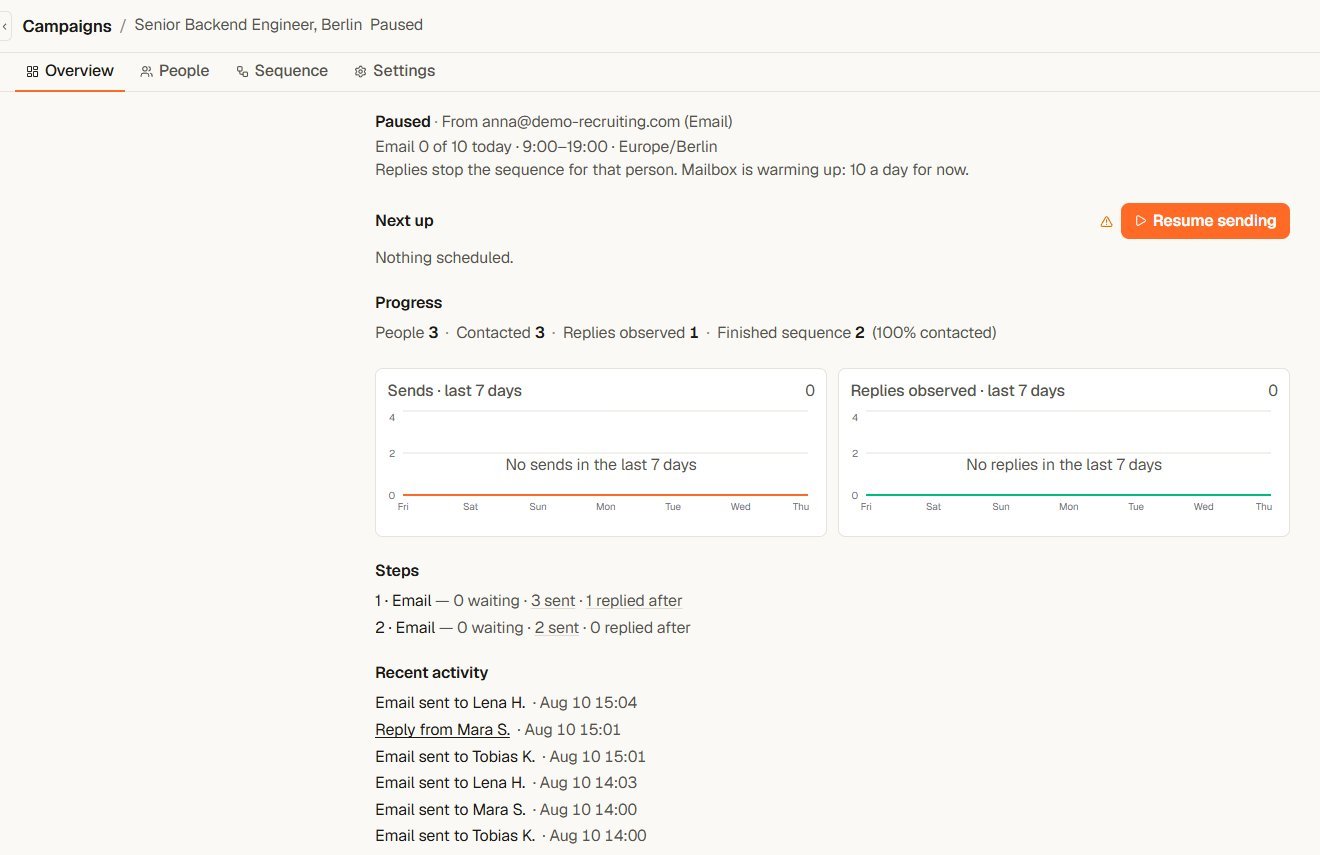
The Overview of a paused campaign: state line, Next up with the Resume button, progress, steps and recent activity
- “Replies stop the sequence for that person.” Always shown.
- “Unanswered invitations are withdrawn after 21 days.” Only when the sequence has a LinkedIn connection request. The number is your campaign’s setting.
- “Mailbox is warming up: 10 a day for now.” Only while a newly connected mailbox is ramping up. See Sending limits and account safety.
Start sending
1
Open the Overview
Go to Campaigns and open the campaign. If it has people, it opens on Overview.
2
Review who goes out first
Read Next up. Each row names the step, the sender and the time. If someone should not get a message, use the remove button on their row. It takes them out before anything is sent.
3
Fix anything that is missing
If the button is greyed out, hover it to see why. The line under the button names the fix with a link, for example “Select a sender on step 1. Open the sequence”.
4
Select Start sending
A confirmation names how many people will start. Confirm it, and Yena works through the sequence inside your delivery window.
Pause and resume
There are two places to stop, and both take effect immediately:- On the Overview, select Pause sending.
- On the Campaigns page, switch Sending off in the campaign’s row. This switch can only pause: one click, no dialog, and a message confirms “Automatic sending is off”. The row then shows Paused and a Start link that opens the Overview.
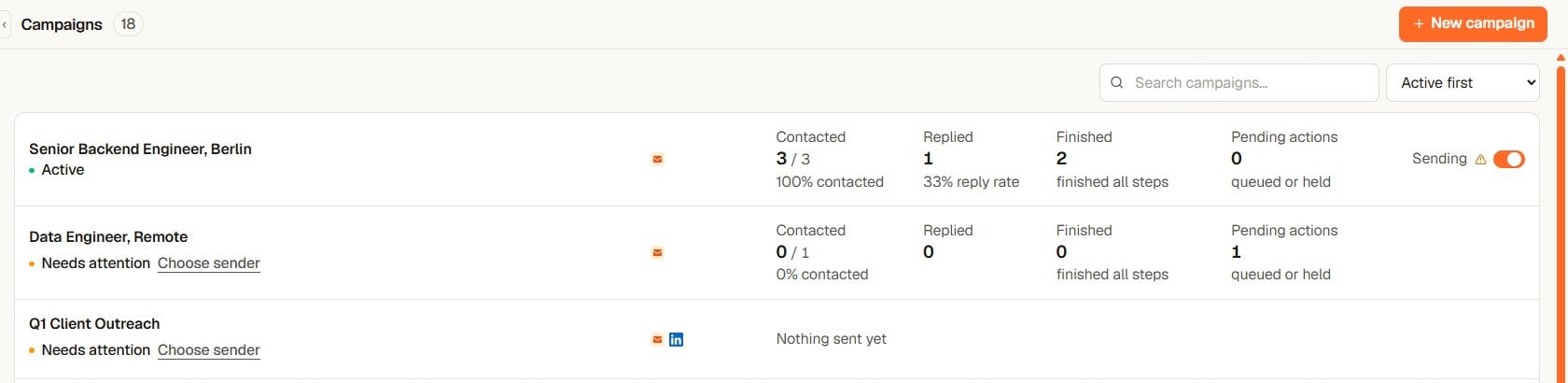
On the Campaigns page, the Sending switch pauses a running campaign with one click
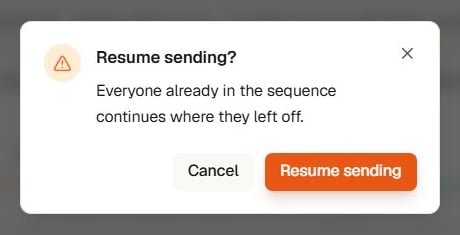
Resuming never restarts anyone: people already in the sequence continue where they left off
Completed and archived campaigns
In the Settings tab, setting Status to Completed or Archived and selecting Save Changes also turns sending off. Setting the status back to Active does not restart sending: the campaign shows Paused, and you resume on the Overview. A completed campaign shows “Make the campaign active.” under a greyed-out Resume sending button. Change the status first, then resume.Troubleshooting
- Start sending is greyed out: hover it. The line under it names the missing item and links to the place to fix it.
- Nothing scheduled: nobody is queued for the next sends. Check that the campaign has people and the sequence has steps.
- People sit under Held: each entry names the reason in one line. Fix that reason, or remove the person from the campaign.
- The state line says Needs attention: something in the setup is missing. The line under the greyed-out button names it and links to the place to fix it.
- You paused by mistake: open the Overview and select Resume sending. Everyone continues where they left off.