
What replaced the match score: a per-candidate ledger of which requirements are supported, which are unknown, and the sentence from the profile behind each one.
A match score is an opinion you cannot check. “87%” cannot be repeated to a client, cannot be argued with, and says nothing about which part of your brief the person actually meets. Yena no longer shows one.In its place, every candidate carries a ledger: how many of your requirements the profile supports, how many it leaves open, and the evidence behind each line. You read a shortlist the way you read a stack of CVs, and you can defend it in front of a client.
Each candidate carries one line, on the card and in the table row:4 of 6 requirements supported · 2 unknownOpen it and you get a row per requirement, with the verdict and one sentence quoted from the profile:
Supported: the profile says so, and the sentence that says it is shown.
Not supported: the profile contradicts the requirement.
Unknown: the profile does not say either way.
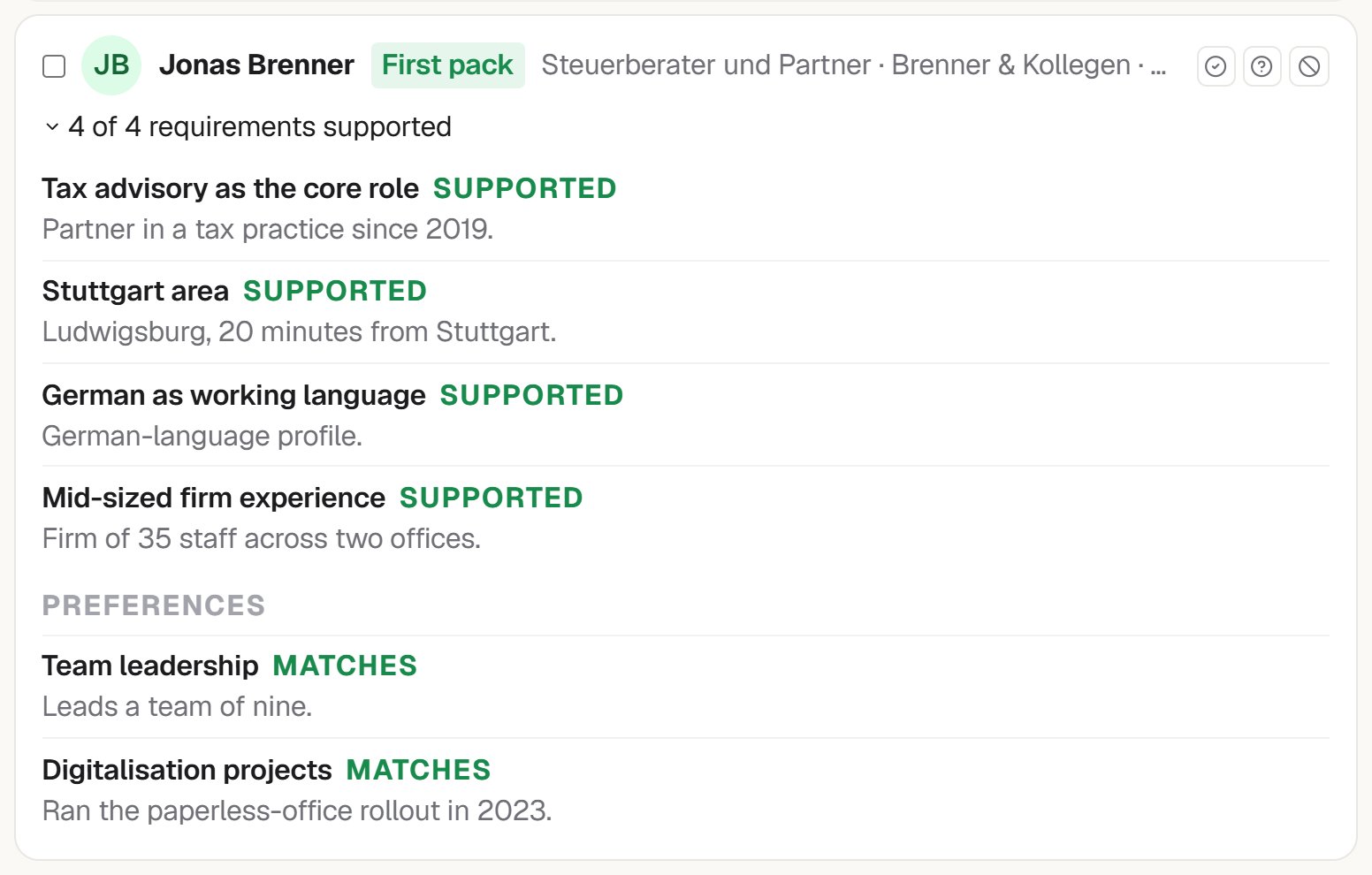
One line per requirement, with the evidence
Preferences sit under their own heading and are never counted in the denominator. The count is only about the things you called requirements, so nobody is marked down for missing something you said would merely be nice.
Unknown is not a no. It means the profile did not mention it. A profile that never names a language is not a profile without the language. Unknown lines are the questions for your first call, not a reason to drop someone.
Checking candidates against your criteria (X of Y)
Comparing the best matches
Done
The bar never claims 100% before the work is done. The comparing step is the slow one, so it shows the time elapsed and tells you it usually takes 1–3 minutes. Nothing sits at “almost finished” while it is still thinking.The ranked list appears only once ranking is complete, because a half-ranked list puts the wrong people at the top. If you want to look early, there is a toggle: show candidates found so far (unranked).
Some of the best people a search finds are already yours. Yena matches every result against the contacts in your workspace by LinkedIn profile, and marks the ones you have.They appear greyed out, with a small database icon after the name. Hover it to see who owns the contact, which pipeline stage they sit in, and when they were last contacted. Click it to open the contact.
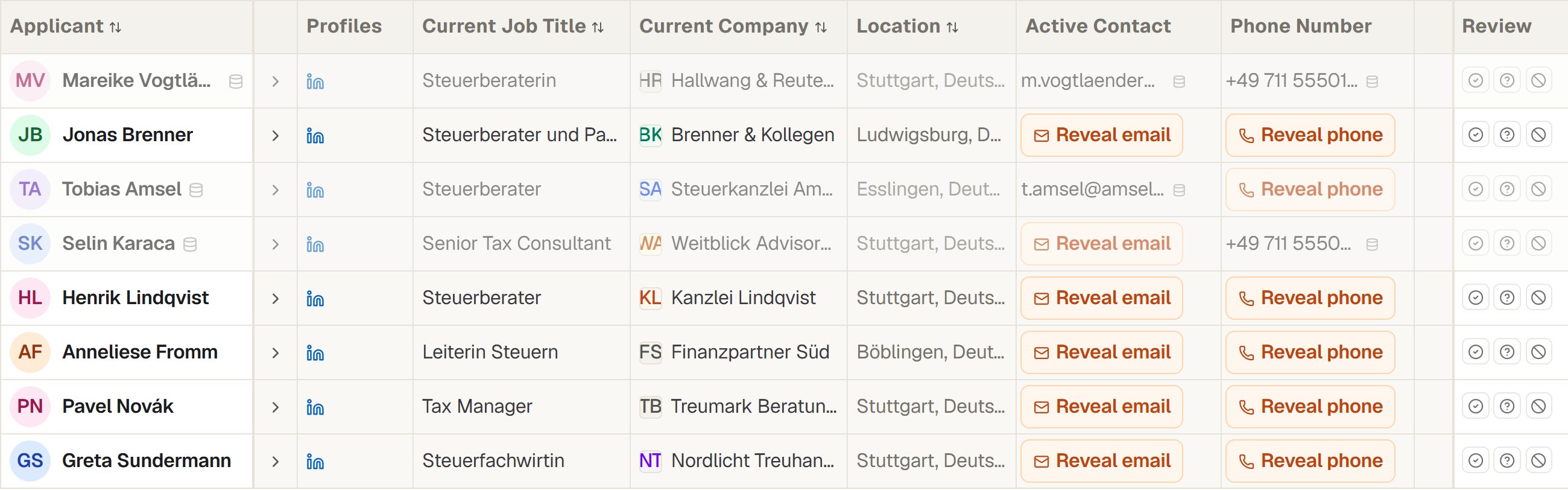
People you already hold are greyed, with the address on file
That is the difference between a cold approach and an awkward one. You find out before you write that a colleague spoke to the person last month.
Above the table: Everyone, Already in my database, Not in my database. Your choice is remembered, so the way you like to work survives the next search.While a filter is on, a note says how much it is holding back, for example “12 hidden” or “38 of 50 shown”. The counts in the tabs stay the counts of the search itself, so filtering never makes a run look smaller than it was.
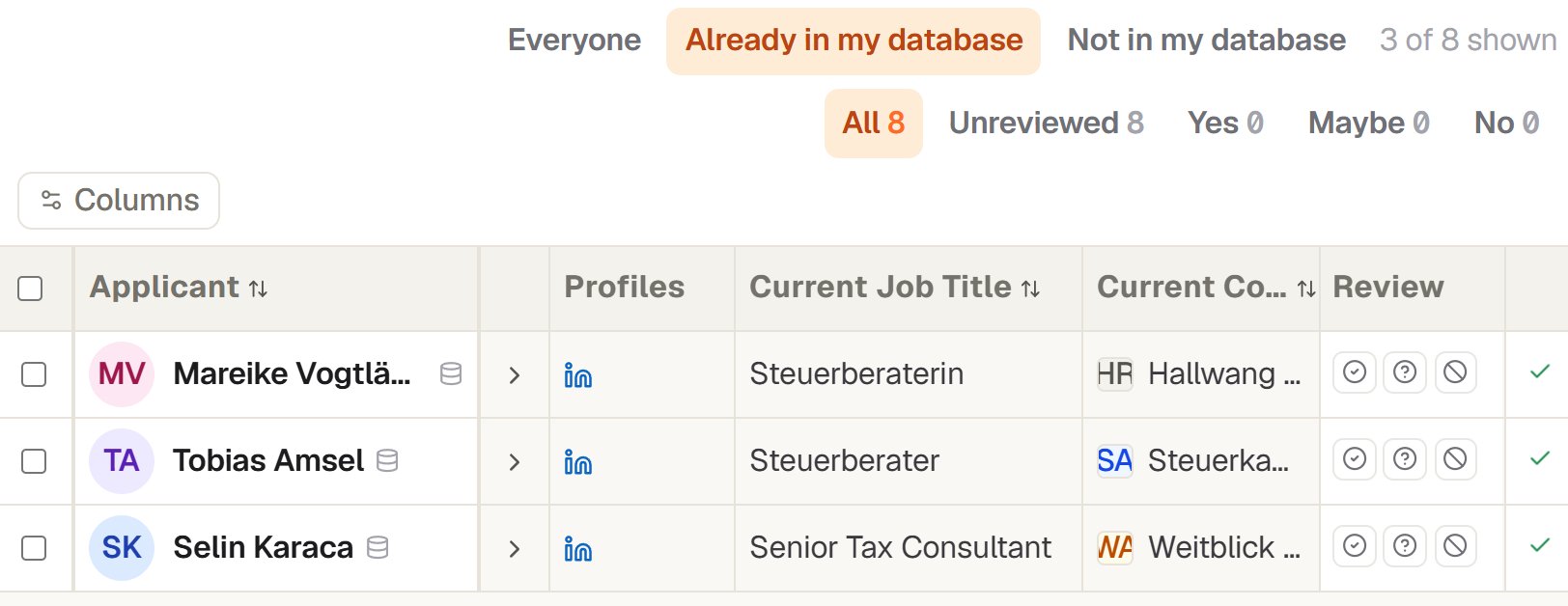
Everyone · Already in my database · Not in my database
Working a pure net-new list? Set the control to Not in my database once, and it stays there for your next search.
For anyone already in your database, the Email and Phone columns show the address and the number you hold. Nothing to reveal, no credit spent. They carry the same small database icon and the tooltip From your database.The reveal button stays where it belongs, on the details you do not have. See Finding contact details.
Each candidate’s current employer carries its logo, so you can scan the company column the way you scan a client list. Where no logo exists, a two-letter mark on a stable colour stands in, never both at once. It behaves the same as company logos everywhere else in Yena.