

1. Switch the role onto the page
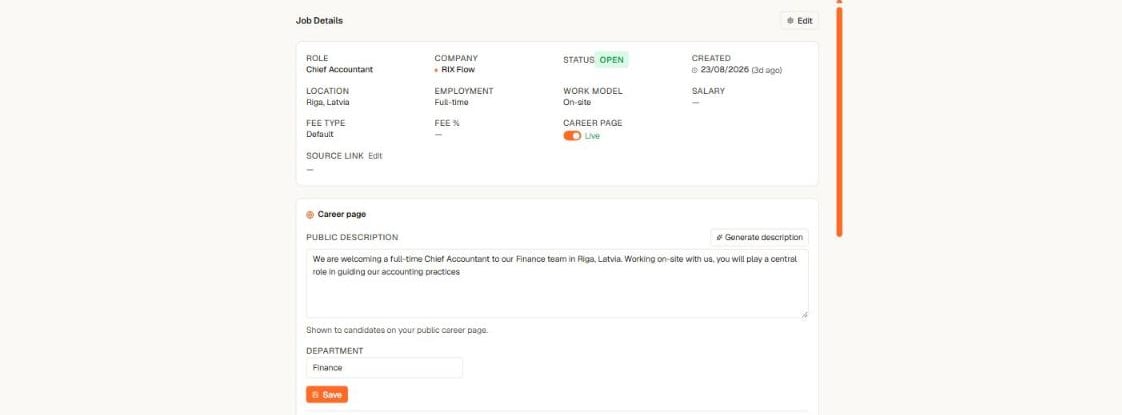
The Career page block on a job — one toggle publishes the role
- Open the job and go to its Details tab.
- In Job Details, switch Career page to Live.
- The role appears on your public page the moment your career page itself is live.
2. Write the public description
The job’s internal description often contains things candidates must never see — fee notes, client context, urgency remarks. That is why the career page shows only the public description.- In the Career page block on the Details tab, write the public description — or select Generate description and let Yena draft a candidate-facing text from the role’s details for you to review.
- Select Save.
No public description means no description — the page shows the role’s title and facts, and your internal text is never used as a fallback. A role also needs a description to be eligible for Google’s job results, so it is worth the two minutes.
3. Locations, department, and the rest
- Multiple cities, one posting. A role can carry several locations — it shows as one posting listing all of them, and each city is reported separately to Google.
- Department groups roles on the public page.
- Employment type, work model and posting date come from the job record automatically.