

Control what the client sees — per job
Every job’s Portal tab has a Presentation & Criteria panel. Each block of the candidate page is a switch: career history, documents, the criteria table, match score, skills chart, your notes, contact details. What you switch off is enforced server-side — it never reaches the client’s browser.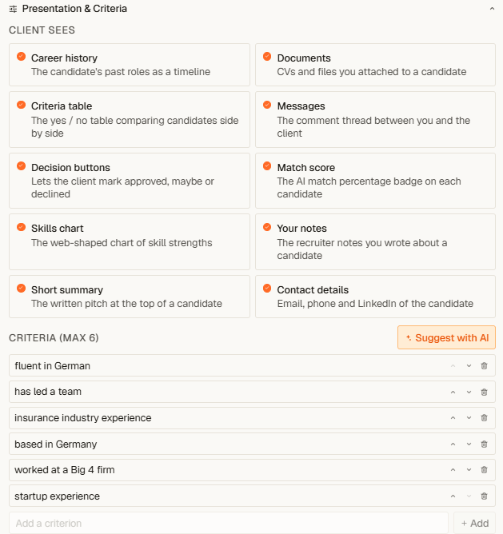
Presentation & Criteria: visibility switches and the job's criteria
The career block
Each candidate row in the client’s list carries the last positions — period, company (with its logo where one is known), and role — the way a classic presentation report reads. The client compares careers side by side without opening a single profile. It follows the Career history switch, so one click hides it for engagements where less is more.Criteria in your words
Add up to six criteria per job — “Fluent German”, “Has led an audit team”, whatever this search turns on. For every candidate you set yes / no / open per criterion; the client sees the same table, candidate by candidate, and each verdict can carry a short reason written for their eyes. An honest question mark builds more trust than a silent guess — “open” is a first-class answer.Suggest with AI — with proof
Suggest with AI reads each candidate’s profile — work history, summary, your recruiter notes — and pre-fills the table like a junior recruiter would:- Where the profile states it outright, the suggestion quotes the exact sentence.
- Where an experienced recruiter would conclude it — someone based in Düsseldorf is not close to Hamburg — it says so and shows its reasoning.
- Where there is no basis, it stays quiet and tells you why.
Decisions beyond yes and no
Clients don’t just approve and decline — they park people. Besides Approve and Decline, the portal offers On hold and Waiting. Parked candidates stay in the client’s “To Review” list with a visible badge, every decision can be undone, and all of it lands back in your pipeline view the moment it happens.Candidates can join the portal automatically: once a candidate reaches a presentation stage in your pipeline (Longlist or Shortlist by default — configurable under Tenant Admin → Client Portal), they appear in the job’s portal without a second add. See Sharing a shortlist.