

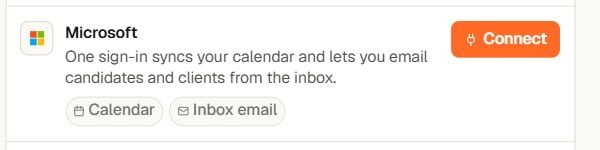
Connect a Microsoft 365 account for calendar and Inbox email
Before you start
- Use the Google or Microsoft account you want Yena to send from.
- Allow the provider sign-in window to open.
- If your company manages app access, your Google or Microsoft administrator may need to approve Yena.
Connect Google
- Open Settings → Connected Accounts.
- Find Google and select Connect.
- Sign in to Google and approve the requested email and calendar access.
- Return to Yena. The Google row should show a green Connected status, plus Calendar and Inbox email.
Connect Microsoft
- On the same page, find Microsoft and select Connect.
- Sign in with the Microsoft 365 account you want to use.
- Approve the requested access, then return to Yena and confirm the row shows Connected.
Check the connection
Each connected row shows when Yena last checked it. Select Check now after connecting or whenever a message or calendar item does not appear as expected.Add your email signature
For Google, select Import from Gmail to copy your current signature, or enter one directly in Yena. Select Save signature when finished.Where email appears
- Inbox — send and receive candidate and client email.
- Calendar — keep meetings synced with your connected account.
- Campaigns — choose the connected email account as the sender for an email step.
Troubleshooting
- Connection looks stale: select Check now.
- Provider asks you to reconnect: complete the sign-in again with the same work account.
- No email sender in a campaign: confirm the account is connected, then reopen the sequence and select it as the sender.