

What you get
- Only the roles that fit you. Yena keeps the roles that match your speciality: the role families, sectors and countries you place. The rest is counted, not shown.
- One sentence on market activity. “In Switzerland, 15 matching roles are currently advertised. In the last 30 days, 4 new roles were observed and 1 was reposted.” Numbers appear only once Yena has watched long enough to be sure; before that it says “history building”.
- A bell when something changes. A new matching role, a reposted one, or a role open for 30 days creates one notification with a link to the role on the company page.
- In the list. The Companies list has a Market activity column, so you see at a glance which clients are moving.

Watch hiring sits next to the company name; the list cell offers it too
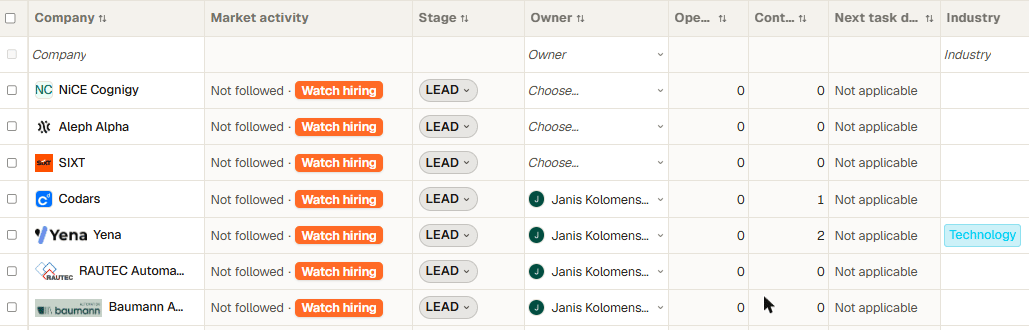
The Companies list: Market activity column with Watch hiring per row
How to start

The speciality sentence on the Companies page
- Confirm your speciality once. On your first visit to Companies, Yena shows one sentence with what it learned from your jobs and placements (“You place Mechanics and CNC in machinery, in Switzerland and Germany.”). Click “Looks right”, or “Edit” to change it in Settings → AI & Workspace → Speciality.
- Watch a company. On the company page, switch on Watch hiring next to the company name, or click “Watch hiring” in the Market activity cell of the list. The company needs a website.
- Wait for the first check. The cell says “Checking roles…” and fills within a minute. After that, every night.
Limits and cost
- You can watch up to 10 companies per workspace in the pilot. The switch tells you when the limit is reached; stop watching one to free a slot.
- Each watched company costs about one cent per night. The ceiling is in code and cannot be raised from the app.
- Stop watching at any time. History stays, checks stop.
What this does not do
- It does not read every job ad on the internet. It reads the roles of the companies you watch.
- It does not guess closures. A role counts as closed only when the source says so.
- It never contacts anyone. Reaching out is your click.