> ## Documentation Index
> Fetch the complete documentation index at: https://support.yena.ai/llms.txt
> Use this file to discover all available pages before exploring further.
# Portal settings and branding
> The toggles that shape what your client sees: anonymization, downloads, feedback, branding, and the live switch.
The portal defaults are sensible; the toggles are where you fit it to the engagement.
 ## The three toggles
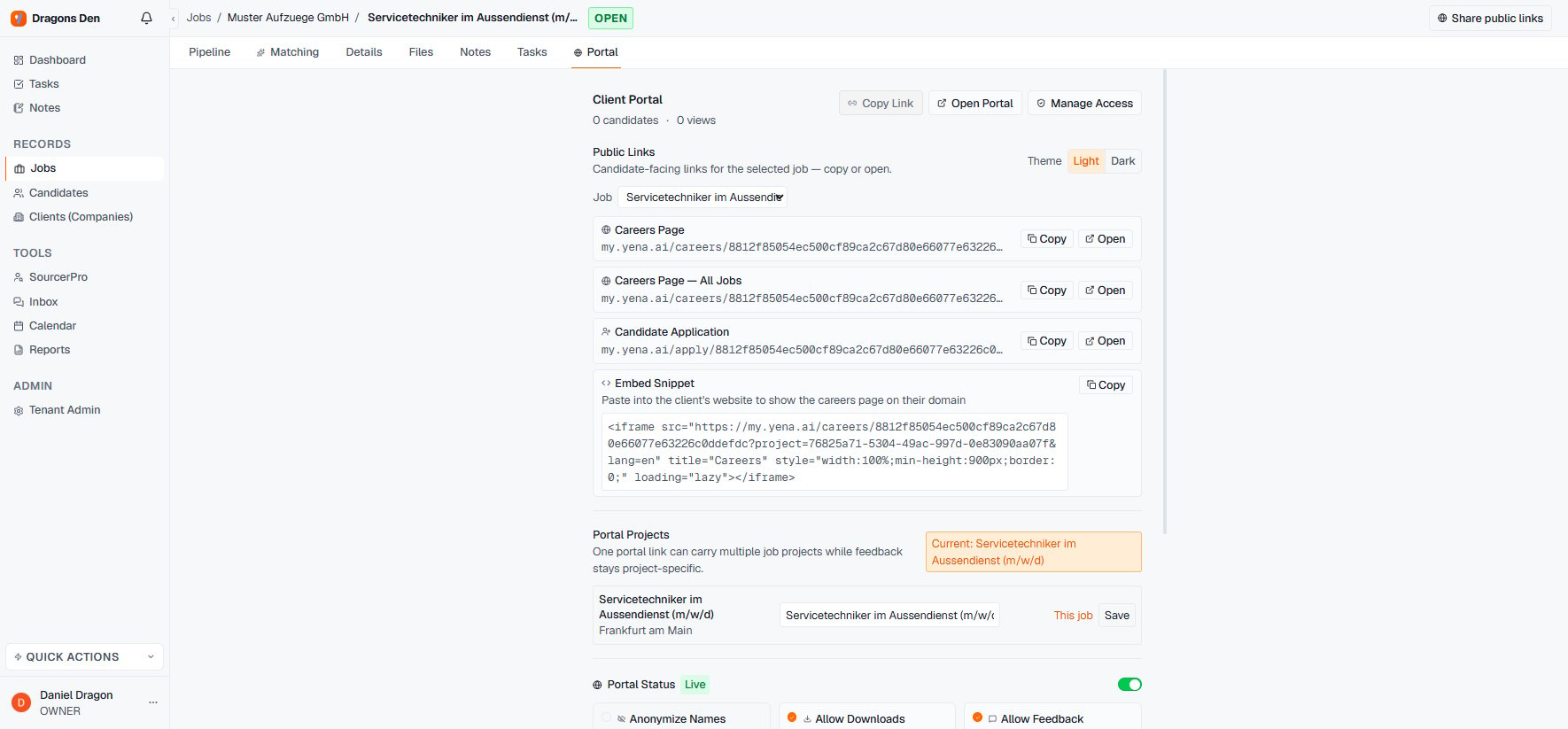
* **Anonymize Names** — the client sees profiles without identities. The pre-contract setting: it protects candidates from being approached directly and protects your fee. Flip it off once terms are signed.
* **Allow Downloads** — client can download CVs and documents you attached to the records. Off means view-only.
* **Allow Feedback** — comments and ratings on candidates, which land back with your pipeline. This is usually the whole point; leave it on unless the review is strictly one person's yes/no.
## Branding and details
**Client Branding & Details** carries the client-facing identity — the portal reads as a service you run for them, "Presented by \[your firm] · Powered by Yena".
## Status and access
**Portal Status: Live** is the master switch: flip it off and the link stops resolving without deleting anything. **Manage Access** controls who can reach it, and the candidate/view counters tell you whether the client actually looked — worth checking before you chase them.
## The three toggles
* **Anonymize Names** — the client sees profiles without identities. The pre-contract setting: it protects candidates from being approached directly and protects your fee. Flip it off once terms are signed.
* **Allow Downloads** — client can download CVs and documents you attached to the records. Off means view-only.
* **Allow Feedback** — comments and ratings on candidates, which land back with your pipeline. This is usually the whole point; leave it on unless the review is strictly one person's yes/no.
## Branding and details
**Client Branding & Details** carries the client-facing identity — the portal reads as a service you run for them, "Presented by \[your firm] · Powered by Yena".
## Status and access
**Portal Status: Live** is the master switch: flip it off and the link stops resolving without deleting anything. **Manage Access** controls who can reach it, and the candidate/view counters tell you whether the client actually looked — worth checking before you chase them.