> ## Documentation Index
> Fetch the complete documentation index at: https://support.yena.ai/llms.txt
> Use this file to discover all available pages before exploring further.
# Shared activity on clients and contacts
> Every call and meeting your team logs against a client or a contact is visible to the whole workspace, with the name of the colleague who logged it.
Two recruiters, one client. One of them calls the hiring manager on Tuesday and logs it. On Thursday the other one opens the same company, sees no call, and phones the same person again. The client hears the same pitch twice in one week, and the team learns that the record cannot be trusted.
That is the failure a CRM exists to prevent. In Yena, a call or meeting you log against a client company or a contact belongs to the **workspace**, not to your personal calendar. Everyone on the team sees it, on the company and on the person, with your name on it.
## What your colleagues see
Open a client company and go to the **Activity** tab. Every call and meeting anyone on the team has linked to this company is listed there, newest first. Each row reads the same way:
* **who** logged it, by name,
* **what** it was: client call, follow-up, interview, internal,
* **when**, with the time range,
* the **notes** written on the event.
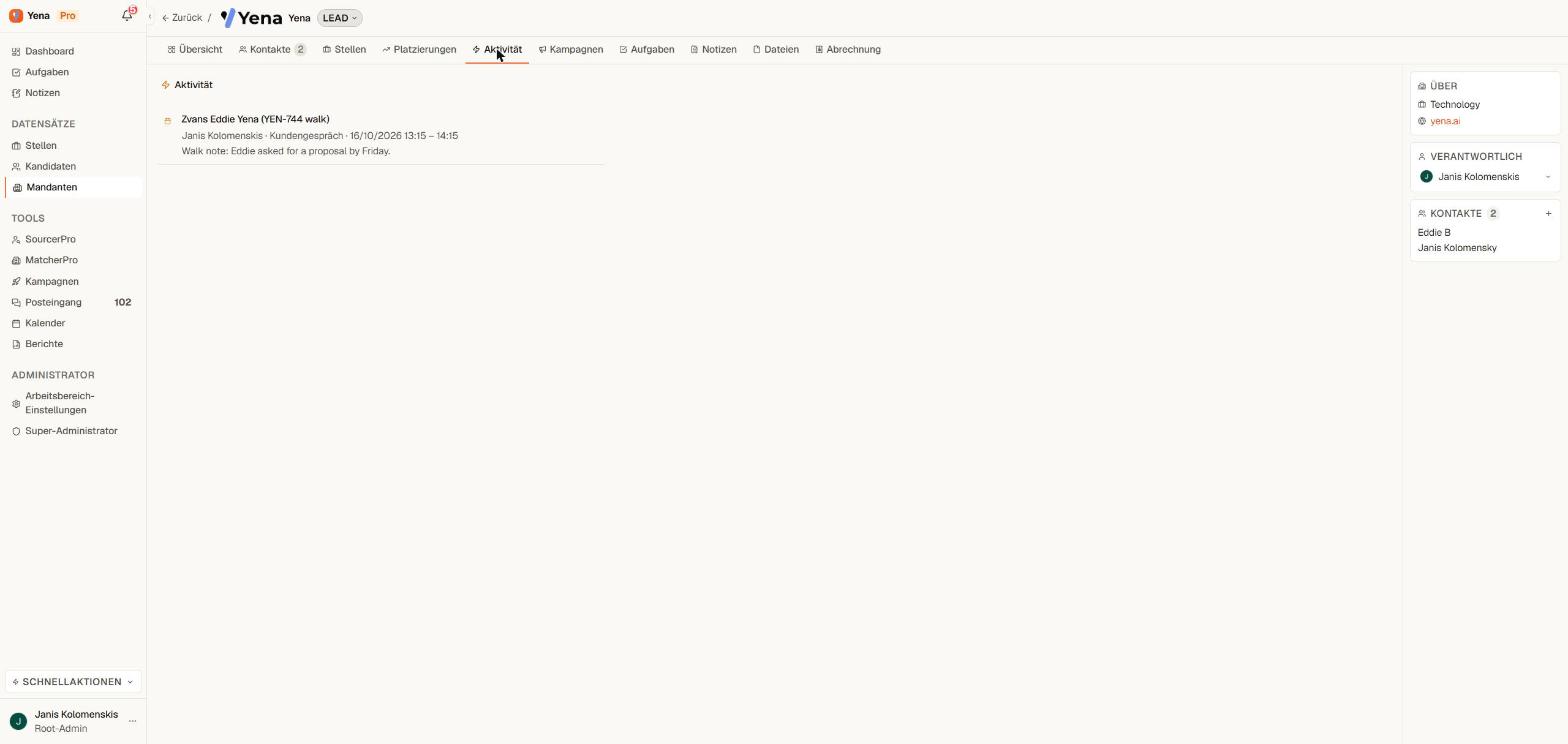 The same rows appear on the **contact's** record when the event is linked to a person. A candidate's timeline shows the interviews your colleagues held with them; a client contact shows the calls your colleagues made.
An event you did not log yourself opens **read-only**. You can read every detail. Only the person who created it can change or delete it.
## What stays private
The rule is simple: **linked means shared**.
* An event linked to a company or a contact is shared with the workspace.
* An event with no link (a dentist appointment, a team lunch, a block of focus time) stays in your own calendar and never appears for a colleague.
Events that come in from your Google or Microsoft calendar follow the same rule. They are shown to colleagues only when you link them to a client or a contact in Yena. For those, the row says *"\'s calendar"* so the team knows where it came from.
## How to log a call so the team sees it
1. Open **Calendar** and click **New appointment**, or log it from the contact's record.
2. Set the **type**: *Client call* for a client, *Candidate call* or an interview type for a candidate.
3. **Link** the client company or the contact. The link is what makes the event visible to the team.
4. Write what was said in the **description**. That text is the note your colleagues will read on the Activity tab.
5. Save.
The link is the whole point. A call logged with no company or contact attached is a private calendar entry, not a CRM record. If the client's name is in the title but the company is not linked, your colleagues will not see it.
## When something cannot be loaded
If the Activity tab cannot reach the server, it says so and offers **Retry**. It never shows an empty "no activity" state while a load has failed, so an outage cannot look like a clean record. Rows already on screen stay there.
If you log a call and the save fails, the form stays open with your text and tells you. Nothing you typed is lost.
Only the person who created an event in Yena can change or delete it. A colleague can read it, never edit it, so a shared call cannot be altered by someone who was not on it.
This documentation is built and hosted on [Mintlify](https://mintlify.com), a developer documentation platform.
The same rows appear on the **contact's** record when the event is linked to a person. A candidate's timeline shows the interviews your colleagues held with them; a client contact shows the calls your colleagues made.
An event you did not log yourself opens **read-only**. You can read every detail. Only the person who created it can change or delete it.
## What stays private
The rule is simple: **linked means shared**.
* An event linked to a company or a contact is shared with the workspace.
* An event with no link (a dentist appointment, a team lunch, a block of focus time) stays in your own calendar and never appears for a colleague.
Events that come in from your Google or Microsoft calendar follow the same rule. They are shown to colleagues only when you link them to a client or a contact in Yena. For those, the row says *"\'s calendar"* so the team knows where it came from.
## How to log a call so the team sees it
1. Open **Calendar** and click **New appointment**, or log it from the contact's record.
2. Set the **type**: *Client call* for a client, *Candidate call* or an interview type for a candidate.
3. **Link** the client company or the contact. The link is what makes the event visible to the team.
4. Write what was said in the **description**. That text is the note your colleagues will read on the Activity tab.
5. Save.
The link is the whole point. A call logged with no company or contact attached is a private calendar entry, not a CRM record. If the client's name is in the title but the company is not linked, your colleagues will not see it.
## When something cannot be loaded
If the Activity tab cannot reach the server, it says so and offers **Retry**. It never shows an empty "no activity" state while a load has failed, so an outage cannot look like a clean record. Rows already on screen stay there.
If you log a call and the save fails, the form stays open with your text and tells you. Nothing you typed is lost.
Only the person who created an event in Yena can change or delete it. A colleague can read it, never edit it, so a shared call cannot be altered by someone who was not on it.
This documentation is built and hosted on [Mintlify](https://mintlify.com), a developer documentation platform.