> ## Documentation Index
> Fetch the complete documentation index at: https://support.yena.ai/llms.txt
> Use this file to discover all available pages before exploring further.
# Connect your email account
> Connect Google or Microsoft once to sync calendar and send email from Yena's Inbox and campaigns.
Connect your work inbox in **Settings → Connected Accounts**. The connection is private to your Yena user and remains available across devices.
 ## Before you start
* Use the Google or Microsoft account you want Yena to send from.
* Allow the provider sign-in window to open.
* If your company manages app access, your Google or Microsoft administrator may need to approve Yena.
## Connect Google
1. Open **Settings → Connected Accounts**.
2. Find **Google** and select **Connect**.
3. Sign in to Google and approve the requested email and calendar access.
4. Return to Yena. The Google row should show a green **Connected** status, plus **Calendar** and **Inbox email**.
## Connect Microsoft
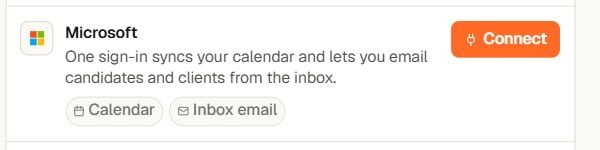
1. On the same page, find **Microsoft** and select **Connect**.
2. Sign in with the Microsoft 365 account you want to use.
3. Approve the requested access, then return to Yena and confirm the row shows **Connected**.
## Check the connection
Each connected row shows when Yena last checked it. Select **Check now** after connecting or whenever a message or calendar item does not appear as expected.
## Add your email signature
For Google, select **Import from Gmail** to copy your current signature, or enter one directly in Yena. Select **Save signature** when finished.
## Where email appears
* **Inbox** — send and receive candidate and client email.
* **Calendar** — keep meetings synced with your connected account.
* **Campaigns** — choose the connected email account as the sender for an email step.
## Troubleshooting
* **Connection looks stale:** select **Check now**.
* **Provider asks you to reconnect:** complete the sign-in again with the same work account.
* **No email sender in a campaign:** confirm the account is connected, then reopen the sequence and select it as the sender.
## Before you start
* Use the Google or Microsoft account you want Yena to send from.
* Allow the provider sign-in window to open.
* If your company manages app access, your Google or Microsoft administrator may need to approve Yena.
## Connect Google
1. Open **Settings → Connected Accounts**.
2. Find **Google** and select **Connect**.
3. Sign in to Google and approve the requested email and calendar access.
4. Return to Yena. The Google row should show a green **Connected** status, plus **Calendar** and **Inbox email**.
## Connect Microsoft
1. On the same page, find **Microsoft** and select **Connect**.
2. Sign in with the Microsoft 365 account you want to use.
3. Approve the requested access, then return to Yena and confirm the row shows **Connected**.
## Check the connection
Each connected row shows when Yena last checked it. Select **Check now** after connecting or whenever a message or calendar item does not appear as expected.
## Add your email signature
For Google, select **Import from Gmail** to copy your current signature, or enter one directly in Yena. Select **Save signature** when finished.
## Where email appears
* **Inbox** — send and receive candidate and client email.
* **Calendar** — keep meetings synced with your connected account.
* **Campaigns** — choose the connected email account as the sender for an email step.
## Troubleshooting
* **Connection looks stale:** select **Check now**.
* **Provider asks you to reconnect:** complete the sign-in again with the same work account.
* **No email sender in a campaign:** confirm the account is connected, then reopen the sequence and select it as the sender.