> ## Documentation Index
> Fetch the complete documentation index at: https://support.yena.ai/llms.txt
> Use this file to discover all available pages before exploring further.
# Navigating Yena
> The dashboard, the sidebar, and where everything lives.
 ## The dashboard
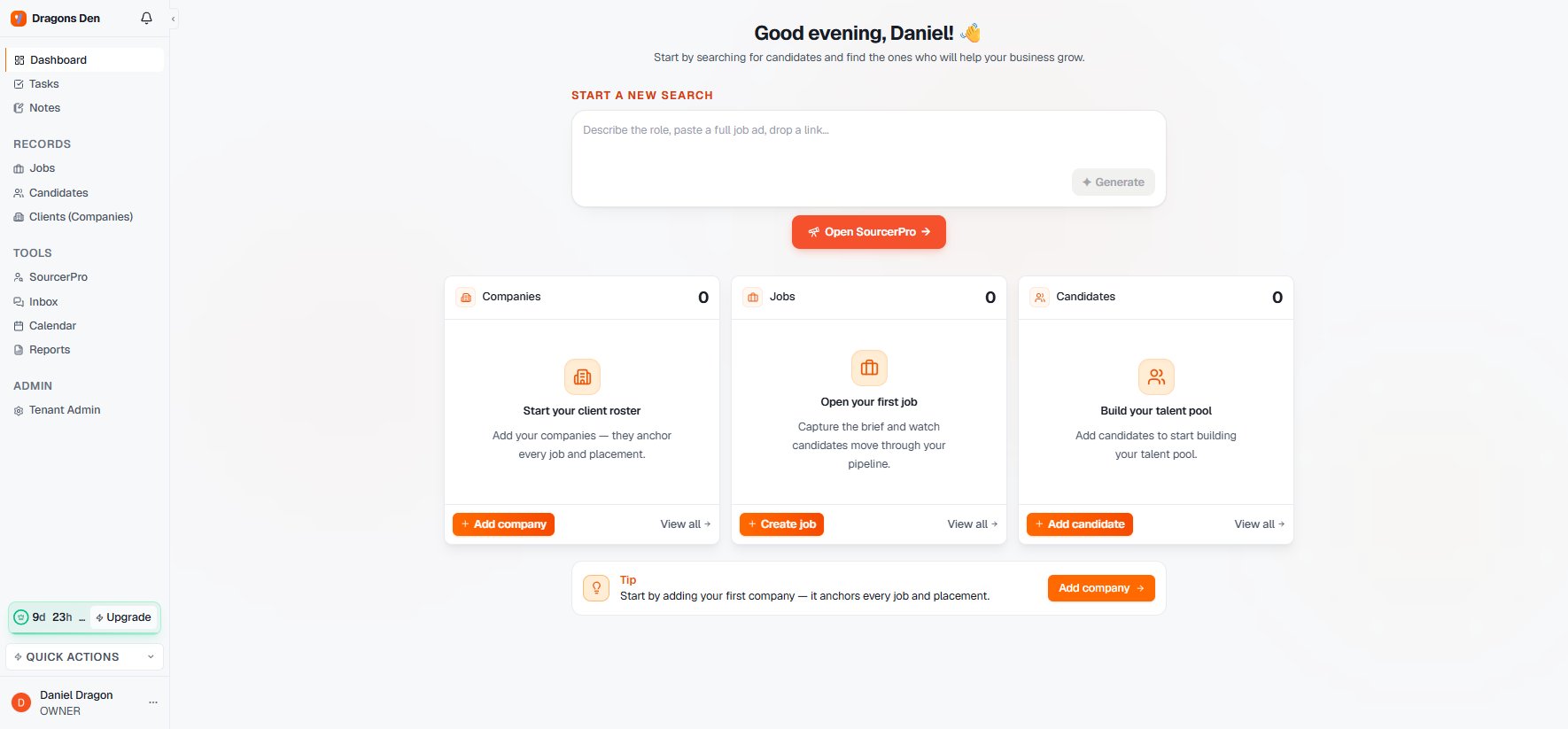
The dashboard opens on the thing you do most: **Start a new search**. Below it, three cards show your Companies, Jobs, and Candidates with the most recent records and one-click create buttons.
## The sidebar
* **Dashboard, Tasks, Notes** — your working layer.
* **Records: Jobs, Candidates, Clients (Companies)** — the database. Each is a filterable table with saved views, CSV import, and inline editing.
* **Tools: SourcerPro, Inbox, Calendar, Reports** — the Sourcer and everything around the work.
* **Admin: Tenant Admin** — [workspace settings](/en/workspace/team-and-workspace-settings), visible to owners and admins.
## Quick actions
The **Quick Actions** button above your profile opens the common create-actions from anywhere, so adding a task or a note doesn't require leaving what you're doing.
The sidebar collapses to icons with the chevron next to the workspace name: useful on smaller screens, and everything stays one click away.
## The dashboard
The dashboard opens on the thing you do most: **Start a new search**. Below it, three cards show your Companies, Jobs, and Candidates with the most recent records and one-click create buttons.
## The sidebar
* **Dashboard, Tasks, Notes** — your working layer.
* **Records: Jobs, Candidates, Clients (Companies)** — the database. Each is a filterable table with saved views, CSV import, and inline editing.
* **Tools: SourcerPro, Inbox, Calendar, Reports** — the Sourcer and everything around the work.
* **Admin: Tenant Admin** — [workspace settings](/en/workspace/team-and-workspace-settings), visible to owners and admins.
## Quick actions
The **Quick Actions** button above your profile opens the common create-actions from anywhere, so adding a task or a note doesn't require leaving what you're doing.
The sidebar collapses to icons with the chevron next to the workspace name: useful on smaller screens, and everything stays one click away.