> ## Documentation Index
> Fetch the complete documentation index at: https://support.yena.ai/llms.txt
> Use this file to discover all available pages before exploring further.
# Publish a job to your career page
> Put a role on your public careers page with a candidate-safe description — drafted by AI, approved by you.
A role that exists only inside your ATS finds nobody. Publishing it to your career page makes it visible to candidates, readable by Google, and open for applications — while your internal notes stay internal.
## 1. Switch the role onto the page
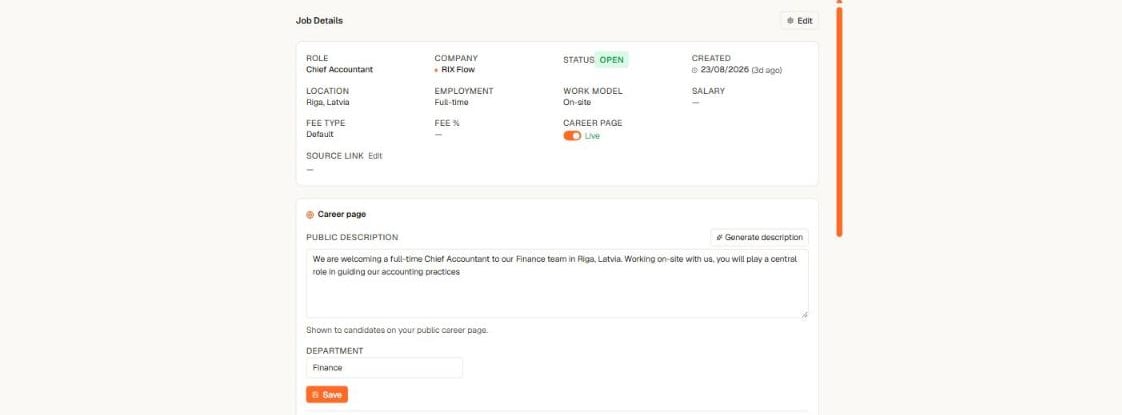 1. Open the job and go to its **Details** tab.
2. In **Job Details**, switch **Career page** to **Live**.
3. The role appears on your public page the moment your career page itself is live.
Prefer every new role to publish itself? Switch **Auto-publish new roles** on in **Tenant Admin → Career Page → Publishing**. It is off by default so you stay in control.
## 2. Write the public description
The job's internal description often contains things candidates must never see — fee notes, client context, urgency remarks. That is why the career page shows only the **public description**.
1. In the **Career page** block on the Details tab, write the public description — or select **Generate description** and let Yena draft a candidate-facing text from the role's details for you to review.
2. Select **Save**.
No public description means no description — the page shows the role's title and facts, and your internal text is never used as a fallback. A role also needs a description to be eligible for Google's job results, so it is worth the two minutes.
## 3. Locations, department, and the rest
* **Multiple cities, one posting.** A role can carry several locations — it shows as one posting listing all of them, and each city is reported separately to Google.
* **Department** groups roles on the public page.
* Employment type, work model and posting date come from the job record automatically.
## Taking a role down
Switch the job's **Career page** toggle off, or close the job — it disappears from the public page, the public API, and the sitemap. Switching the whole career page off in Tenant Admin takes every role offline at once.
## Next steps
* [Add screening questions to the apply form](/en/careers/screening-questions)
* [Review applicants in the inbound queue](/en/careers/inbound-applicants)
1. Open the job and go to its **Details** tab.
2. In **Job Details**, switch **Career page** to **Live**.
3. The role appears on your public page the moment your career page itself is live.
Prefer every new role to publish itself? Switch **Auto-publish new roles** on in **Tenant Admin → Career Page → Publishing**. It is off by default so you stay in control.
## 2. Write the public description
The job's internal description often contains things candidates must never see — fee notes, client context, urgency remarks. That is why the career page shows only the **public description**.
1. In the **Career page** block on the Details tab, write the public description — or select **Generate description** and let Yena draft a candidate-facing text from the role's details for you to review.
2. Select **Save**.
No public description means no description — the page shows the role's title and facts, and your internal text is never used as a fallback. A role also needs a description to be eligible for Google's job results, so it is worth the two minutes.
## 3. Locations, department, and the rest
* **Multiple cities, one posting.** A role can carry several locations — it shows as one posting listing all of them, and each city is reported separately to Google.
* **Department** groups roles on the public page.
* Employment type, work model and posting date come from the job record automatically.
## Taking a role down
Switch the job's **Career page** toggle off, or close the job — it disappears from the public page, the public API, and the sitemap. Switching the whole career page off in Tenant Admin takes every role offline at once.
## Next steps
* [Add screening questions to the apply form](/en/careers/screening-questions)
* [Review applicants in the inbound queue](/en/careers/inbound-applicants)