> ## Documentation Index
> Fetch the complete documentation index at: https://support.yena.ai/llms.txt
> Use this file to discover all available pages before exploring further.
# Track progress and replies
> Read the per-person status, understand the campaign funnel, and know exactly what happens when someone replies.
A running campaign answers three questions at a glance: what happened to each person, what happens next and when, and how the campaign is performing overall.
## The per-person status
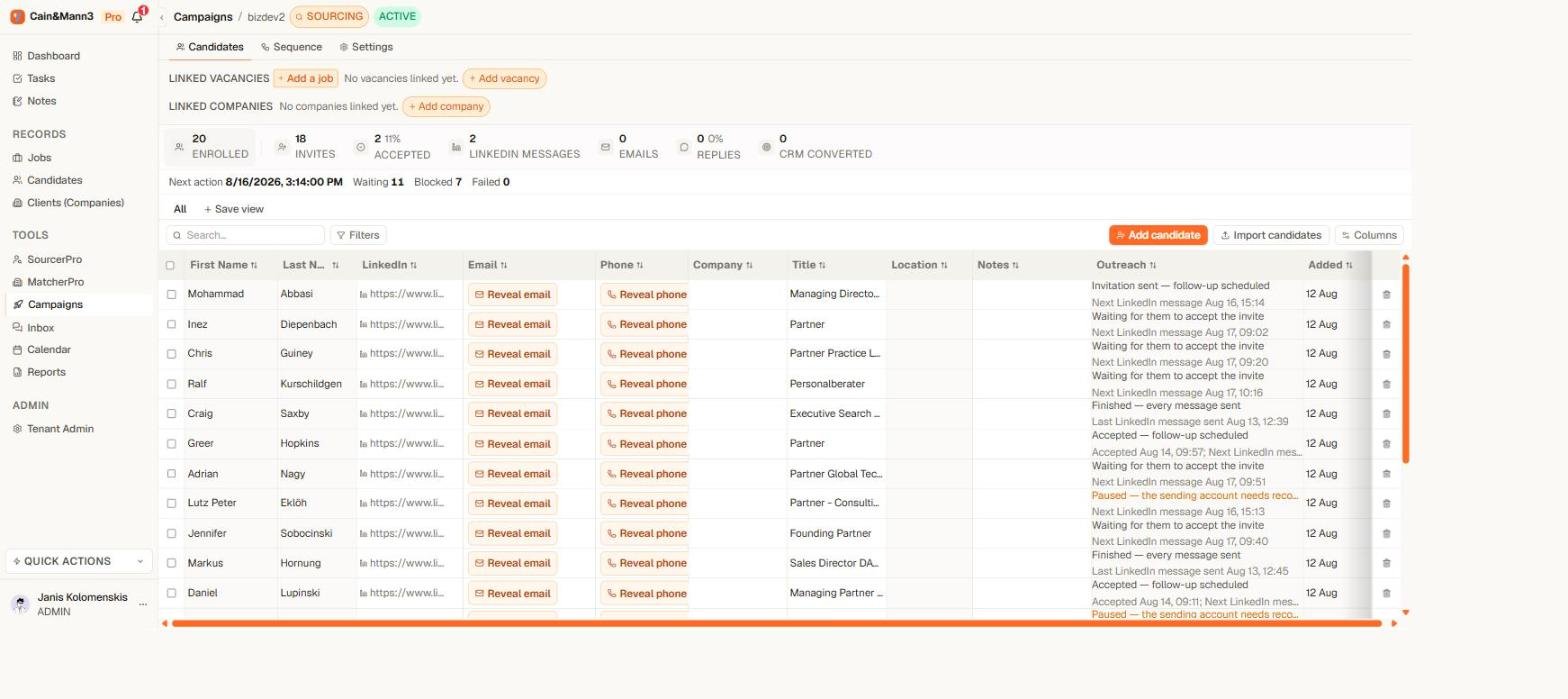 Open the campaign's **Candidates** tab. The **Outreach** column carries two lines for each person:
* the current state — for example **Waiting to send**, **Waiting for invitation acceptance**, **Replied**, or **Could not send**;
* the useful detail — the exact next scheduled action ("Next: Email at 14 Aug, 09:00"), when an invitation was accepted, or the reason something failed.
Statuses update live — acceptance, sends, replies, and completions appear without reloading the page.
| You see | It means |
| ------------------------------------- | -------------------------------------------------------------------------------------------------------------------------------------------------------------------------------------- |
| **Waiting to send** | The next step is queued but not due yet, or today's sending limit is reached. The second line shows the scheduled time. |
| **Waiting for invitation acceptance** | The connection request went out; the follow-up message is waiting for the person to accept. |
| **Message sent** / **Email sent** | The provider confirmed the send. Yena counts nothing as sent without that confirmation. |
| **Replied** | A reply was matched to this person. All their remaining steps are cancelled. |
| **Skipped** | A step was skipped — usually a missing contact detail with skip enabled, or an invitation that was never accepted within the waiting budget. The journey continues with the next step. |
| **Could not send** | The send failed after retries. The second line names the reason. |
| **Finished** | Every step of their journey is complete. |
## The campaign funnel
Open the campaign's **Candidates** tab. The **Outreach** column carries two lines for each person:
* the current state — for example **Waiting to send**, **Waiting for invitation acceptance**, **Replied**, or **Could not send**;
* the useful detail — the exact next scheduled action ("Next: Email at 14 Aug, 09:00"), when an invitation was accepted, or the reason something failed.
Statuses update live — acceptance, sends, replies, and completions appear without reloading the page.
| You see | It means |
| ------------------------------------- | -------------------------------------------------------------------------------------------------------------------------------------------------------------------------------------- |
| **Waiting to send** | The next step is queued but not due yet, or today's sending limit is reached. The second line shows the scheduled time. |
| **Waiting for invitation acceptance** | The connection request went out; the follow-up message is waiting for the person to accept. |
| **Message sent** / **Email sent** | The provider confirmed the send. Yena counts nothing as sent without that confirmation. |
| **Replied** | A reply was matched to this person. All their remaining steps are cancelled. |
| **Skipped** | A step was skipped — usually a missing contact detail with skip enabled, or an invitation that was never accepted within the waiting budget. The journey continues with the next step. |
| **Could not send** | The send failed after retries. The second line names the reason. |
| **Finished** | Every step of their journey is complete. |
## The campaign funnel
 The bar above the table shows the funnel built from real execution facts:
* people enrolled;
* LinkedIn invitations sent, and how many were accepted;
* LinkedIn messages and emails sent;
* people who replied, and the reply rate;
* failed and skipped actions.
The reply rate is calculated against people who actually received at least one confirmed send — so it tells you how the messaging performs, not how optimistic the list was.
While sending is on, a safety strip also shows today's usage against the daily limit and the earliest next scheduled action, so you always know whether the campaign is working or waiting.
## When someone replies
The reply rule is absolute, and it works the same on every channel:
1. The reply is matched to the person.
2. They exit **every** campaign in your workspace — not just the one they answered.
3. All their remaining steps are cancelled.
4. Their status advances to **Replied**.
5. You get a notification linked to the conversation in **Inbox**.
From that moment the sequence is out of the picture. Continue the conversation in **Inbox** like any other thread.
A reply can only stop a campaign if Yena can match it to a person. Messages from unknown senders stay visible in Inbox as unlinked conversations — Yena never guesses who they belong to.
## Troubleshooting
* **The funnel looks lower than the people count:** people without the needed contact details, or whose invitation was never accepted, are counted under skipped — not under sends that never happened.
* **A reply came in but the person still shows a scheduled step:** matching runs when the account syncs; the step is cancelled before it becomes due. If the person replied from a different address or profile, link the conversation to them in Inbox.
* **Numbers differ from your CRM statuses:** the funnel counts execution facts (confirmed sends, acceptances, replies). CRM statuses on the contact are yours to edit and are tracked separately.
The bar above the table shows the funnel built from real execution facts:
* people enrolled;
* LinkedIn invitations sent, and how many were accepted;
* LinkedIn messages and emails sent;
* people who replied, and the reply rate;
* failed and skipped actions.
The reply rate is calculated against people who actually received at least one confirmed send — so it tells you how the messaging performs, not how optimistic the list was.
While sending is on, a safety strip also shows today's usage against the daily limit and the earliest next scheduled action, so you always know whether the campaign is working or waiting.
## When someone replies
The reply rule is absolute, and it works the same on every channel:
1. The reply is matched to the person.
2. They exit **every** campaign in your workspace — not just the one they answered.
3. All their remaining steps are cancelled.
4. Their status advances to **Replied**.
5. You get a notification linked to the conversation in **Inbox**.
From that moment the sequence is out of the picture. Continue the conversation in **Inbox** like any other thread.
A reply can only stop a campaign if Yena can match it to a person. Messages from unknown senders stay visible in Inbox as unlinked conversations — Yena never guesses who they belong to.
## Troubleshooting
* **The funnel looks lower than the people count:** people without the needed contact details, or whose invitation was never accepted, are counted under skipped — not under sends that never happened.
* **A reply came in but the person still shows a scheduled step:** matching runs when the account syncs; the step is cancelled before it becomes due. If the person replied from a different address or profile, link the conversation to them in Inbox.
* **Numbers differ from your CRM statuses:** the funnel counts execution facts (confirmed sends, acceptances, replies). CRM statuses on the contact are yours to edit and are tracked separately.