> ## Documentation Index
> Fetch the complete documentation index at: https://support.yena.ai/llms.txt
> Use this file to discover all available pages before exploring further.
# How a LinkedIn campaign reaches people
> LinkedIn only delivers messages between people who are connected. Start with a connection request, or tell Yena the list is already your network.
## The rule LinkedIn sets, not Yena
On LinkedIn you can only message people you are connected to. A message to anyone else is refused. No tool changes that; the difference between tools is whether they let you build a campaign that quietly reaches nobody.
A recruiter recently built a campaign for 41 construction managers in Berlin: two LinkedIn messages, two days apart. None of the 41 were connected to the recruiter yet. Had it run, every message would have waited, then been skipped, and the campaign would have looked busy while reaching no one.
Yena now stops that at the point where you can still fix it: while you build the sequence, not days later in a status column.
## Two ways to reach a person on LinkedIn
| You want to reach | Start the sequence with |
| ---------------------------------------------------------------------- | ------------------------------------------------------------------------------------ |
| People not connected to you yet (a sourcing list, a Sourcer shortlist) | A **connection request**. Messages follow once the person accepts. |
| People already in your network | A **LinkedIn message**, with the sequence set to **People you can already message**. |
That is the whole decision. Everything below follows from it.
## Start from a template that already has the right shape
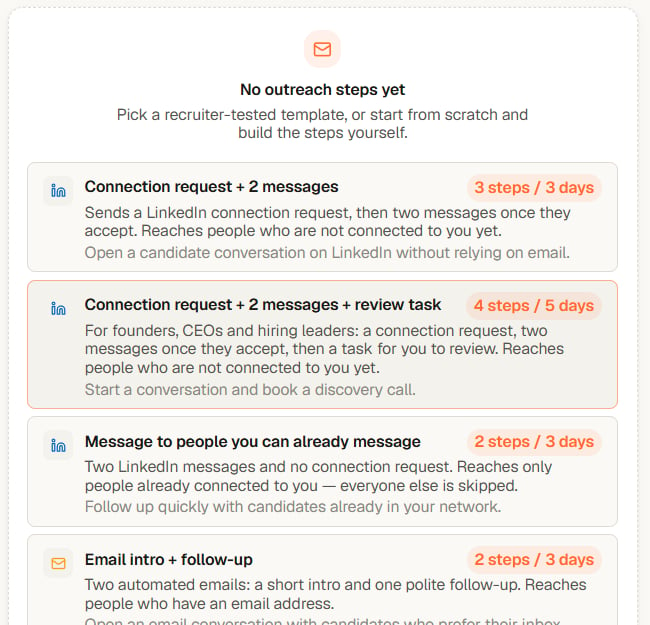 The starter templates are named by what they send and whom they reach:
* **Connection request + 2 messages** reaches people who are not connected to you yet. Step 1 invites them; steps 2 and 3 go out after they accept.
* **Connection request + 2 messages + review task** is the same for founders and hiring leaders, with a task for you at the end.
* **Message to people you can already message** sends two messages and no connection request. It only reaches people already connected to you. Everyone else is skipped.
* **Email intro + follow-up** uses email and needs an email address per person.
The starter templates are named by what they send and whom they reach:
* **Connection request + 2 messages** reaches people who are not connected to you yet. Step 1 invites them; steps 2 and 3 go out after they accept.
* **Connection request + 2 messages + review task** is the same for founders and hiring leaders, with a task for you at the end.
* **Message to people you can already message** sends two messages and no connection request. It only reaches people already connected to you. Everyone else is skipped.
* **Email intro + follow-up** uses email and needs an email address per person.
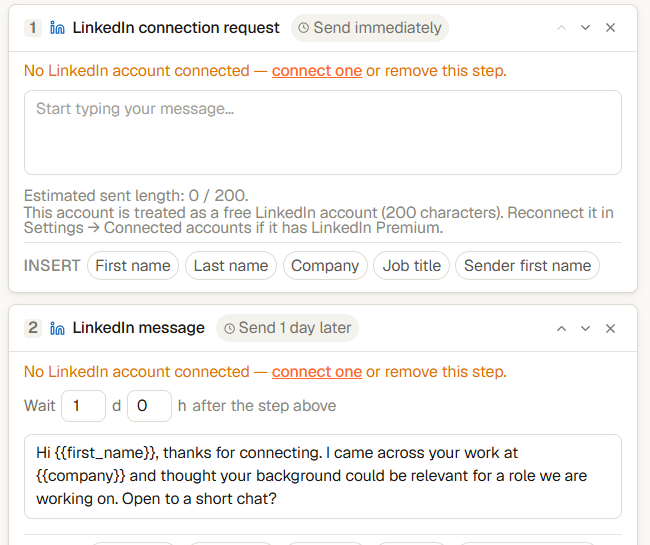 The delay on a message that follows a connection request counts from the moment the person accepts, not from when the invitation went out. "1 day later" means one day after they said yes.
## What Yena does when the shape is wrong
If a LinkedIn message has no connection request above it, and the sequence is not set to People you can already message, Yena says so under that step:
The delay on a message that follows a connection request counts from the moment the person accepts, not from when the invitation went out. "1 day later" means one day after they said yes.
## What Yena does when the shape is wrong
If a LinkedIn message has no connection request above it, and the sequence is not set to People you can already message, Yena says so under that step:
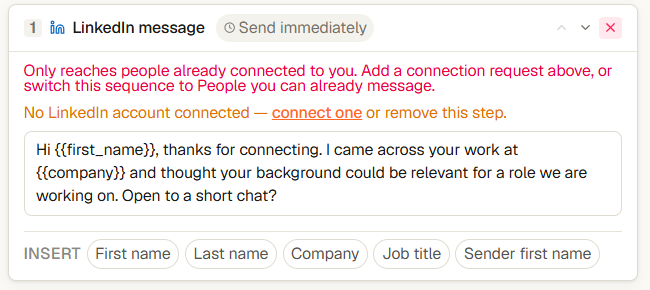 The same sentence appears in the setup strip and on **Start sending**, which refuses until you pick one of the two fixes:
1. **Add a connection request above** the message. Use the step list at the bottom of the sequence.
2. **Switch the sequence to People you can already message**, in the Enrollment settings on the right.
The same sentence appears in the setup strip and on **Start sending**, which refuses until you pick one of the two fixes:
1. **Add a connection request above** the message. Use the step list at the bottom of the sequence.
2. **Switch the sequence to People you can already message**, in the Enrollment settings on the right.
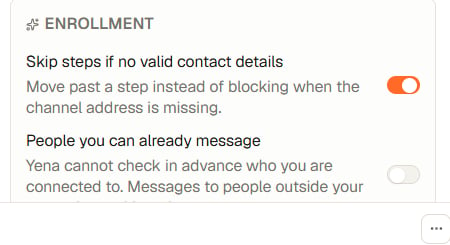 Yena cannot check in advance who you are connected to. In **People you can already message** mode, a person outside your network is skipped at the moment their message is due, and their row says so. They are not held for days first.
## A step with no account behind it
Each step sends from one of your own connected accounts. If a step's channel has no account, the step says exactly that: "No WhatsApp account connected — connect one or remove this step." The link opens your connected accounts; removing the step is the other way out. The setup strip names the channel too, so you never have to guess which step is the problem.
WhatsApp steps are no longer part of any starter template. You can still add one when your list has phone numbers and you have a connected WhatsApp account.
## Checklist before you press Start sending
* Step 1 is a connection request, or the sequence is set to People you can already message.
* Every LinkedIn step shows your LinkedIn account, not "No LinkedIn account connected".
* The setup strip reads Ready and names no missing item.
* Use **Test one message** once, for one real person, to see the exact wording.
Then switch sending on. See [Run a campaign](/en/campaigns/run-a-campaign) for the rest of the walkthrough and [Sending limits and account safety](/en/campaigns/sending-limits-and-safety) for how invitations and messages are paced per day.
Yena cannot check in advance who you are connected to. In **People you can already message** mode, a person outside your network is skipped at the moment their message is due, and their row says so. They are not held for days first.
## A step with no account behind it
Each step sends from one of your own connected accounts. If a step's channel has no account, the step says exactly that: "No WhatsApp account connected — connect one or remove this step." The link opens your connected accounts; removing the step is the other way out. The setup strip names the channel too, so you never have to guess which step is the problem.
WhatsApp steps are no longer part of any starter template. You can still add one when your list has phone numbers and you have a connected WhatsApp account.
## Checklist before you press Start sending
* Step 1 is a connection request, or the sequence is set to People you can already message.
* Every LinkedIn step shows your LinkedIn account, not "No LinkedIn account connected".
* The setup strip reads Ready and names no missing item.
* Use **Test one message** once, for one real person, to see the exact wording.
Then switch sending on. See [Run a campaign](/en/campaigns/run-a-campaign) for the rest of the walkthrough and [Sending limits and account safety](/en/campaigns/sending-limits-and-safety) for how invitations and messages are paced per day.